Customer support saw you helping me on forums and mentioned your importance . I feel bad taking your time with novice questions or issues. Maybe someone could clarify one of the instructions.
“In the directory with these files present, run sudo uuu flash.ls. "
What does “In the directory” mean? And by “run sudo uuu flash.ls” you mean type that in to the terminal?
I downloaded the file, made a text file with that name with that code in it put them both in a folder together and ran that code in the terminal.
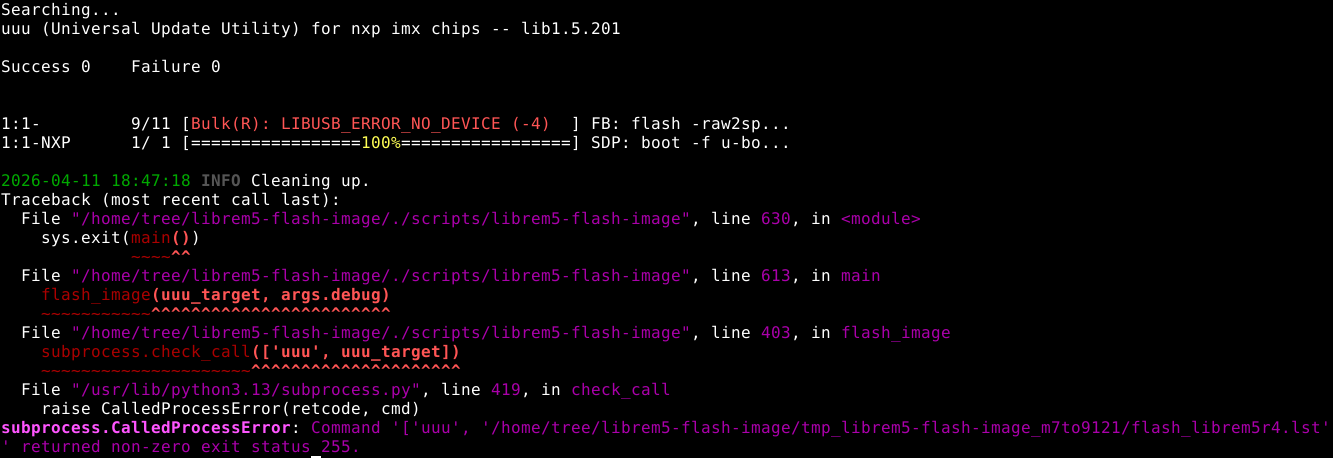
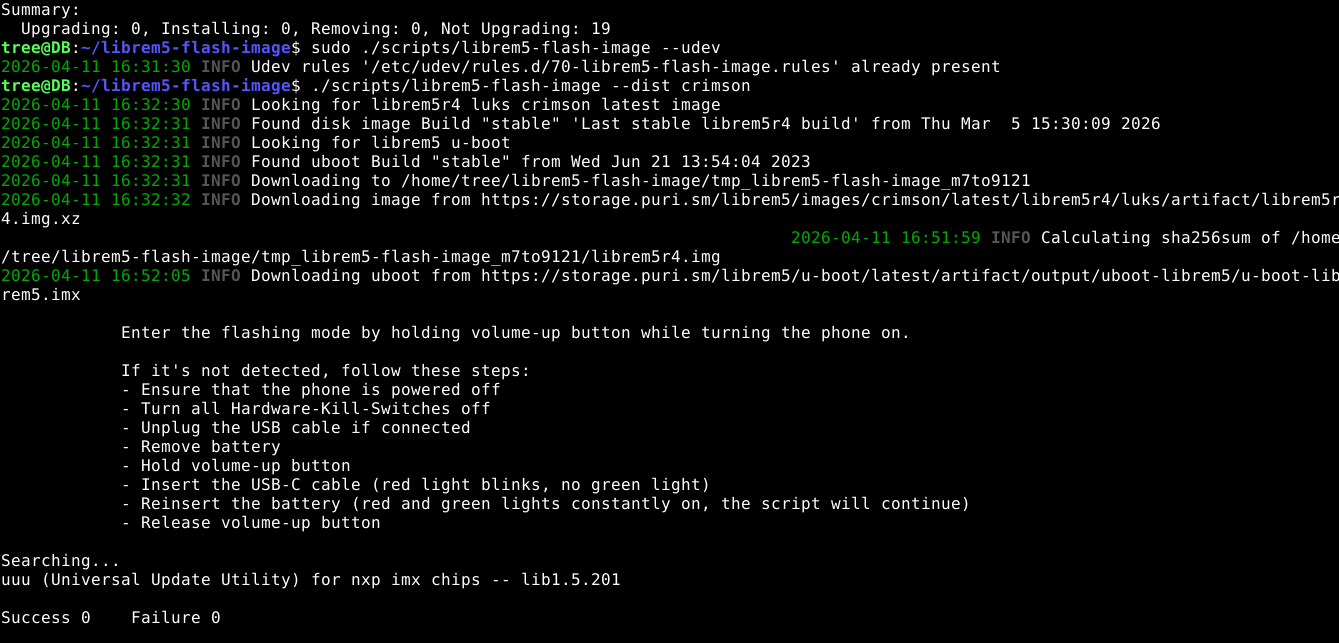
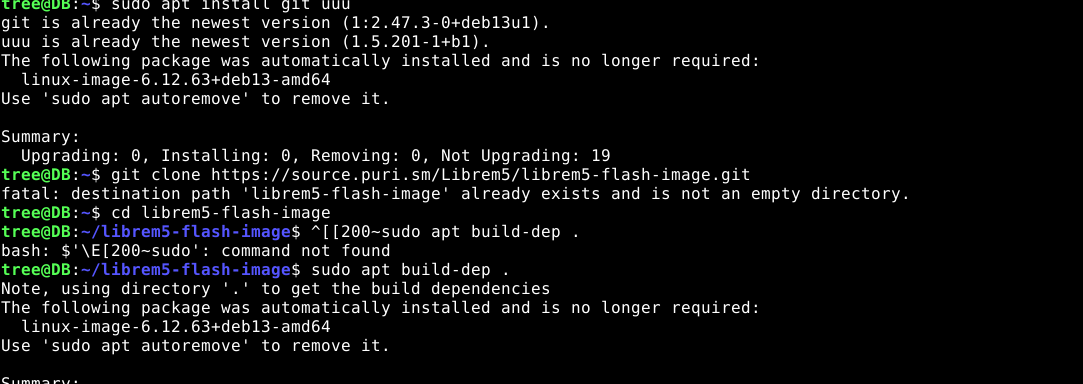
Customer service wanted me to make sure that I got certain steps correct doing the long way. So I redid all the steps. It didn’t give me a failure response, but also not a success. (Pictures are in reverse order so last picture is 1st.)
That simply means that you need to start in the same directory (folder) where those files are located. For instance, if you saved those files in your “home” directory, i.e. the one that’s usually called the user’s name, then you will launch the terminal app (which automatically starts in the home directory), and “run” the given command, i.e. type, or copy and paste the command that @dos gave you, then hit Enter.
If the files you saved are not in the home directory, you can either move them there before running the command in the terminal, or you can open the terminal and “change directory” before you run the command. If, say, your files are in the Downloads directory, then in the terminal, type cd Downloads to change to the Downloads directory. Then run the command. (But just saving the files in your home directory first is probably easier. Then you won’t have to change directories in the terminal.)
Think of it this way:
The graphical point-and-click, drag-and-drop interface that you see on your desktop is just a pictorial representation of the same file structure that can be navigated in the terminal in a non-graphical way just by using commands, like a “tree” diagram.
P.S. In your bottom screenshot, the ^[[200~ in one of your commands probably happened because you tried to use Ctrl v to paste the command. In the terminal, the keyboard commands always use Ctrl Shift plus the letter, instead of just Ctrl plus the letter. So you ended up with some unwanted text, which ruined the command. (You can also use copy and paste functions from the menu inside terminal, if you prefer.)
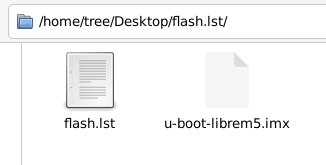
Oh ok thanks. Then maybe I did that right? I downloaded the file and moved it to the desktop, then moved it to a folder I made in the desktop that I also called flash.lst. So the terminal defaults to anything from the “home” path then? I did Home to name to desktop to a folder on desktop. I tried it first with just both files sitting on the desktop. It didn’t work either way but is that all correct? Also thanks on the control shift advice. I think it also does it sometimes when I right click too. but Ill do it that way.
The path, as seen on your screenshot, is /home/tree/Desktop/flash.lst/. You use the command cd to switch to the specified path - so you want to type:
cd /home/tree/Desktop/flash.lst/
Then you can list the contents of the current directory by using ls, so you can verify that you’re actually in the correct directory and the files are present there.
Then you can continue with what I’ve told you earlier.
But flash.1st is a text file, not a directory, right? So @lib52 would use: cd /home/tree/Desktop
to enter the Desktop directory. Then: ls
to list the contents of the Desktop directory, which would include the file flash.1st.
Correct?
Ok thanks. Followed the steps and the process was successful. Phone still not turning on though and now doing weird things. After it completed I forget what the light did. I turned it off then on and it was green for a long time then started blinking green. When I would plug it into the charger the light would turn orange and stay orange. It would turn red for a sec then green back to orange and repeat. If I held the power button to turn it off and then let go the light would turn to red and stay the charging red. I switched batteries and turned phone on and it would stay green for 30+ seconds then reset and turn green on again for 30 and it kept repeating the loop. I switched battery back and it would do the same thing. Just tried it again and it did the same thing. One of the battery I believe has good charge idk about the other.
ok thanks! Its been charging for a while. Turned it on and it goes green for a second and then stays orange for 40 seconds and then resets and does that over and over.
@lib52 Looks like the kernel fails to boot for some reason. Rescuing the existing installation would be more involved, but since flashing u-boot alone has succeeded it means you should be able to reflash the whole OS too.
FYI:
To only download the image to a specified directory without flashing:
A cool aside librewolf is formatted properly on crimson! 3 things I’ve wanted with librem 5 : mullvad vpn, private browser (preferably mullvad but they don’t make arm64 but librewolf now formatted so works great). And private messaging app that’s easy to use and install (I can do some research to make it work, but none of my friends would on their devices). So next weekend going to see if I can get signal working.
 . I feel bad taking your time with novice questions or issues. Maybe someone could clarify one of the instructions.