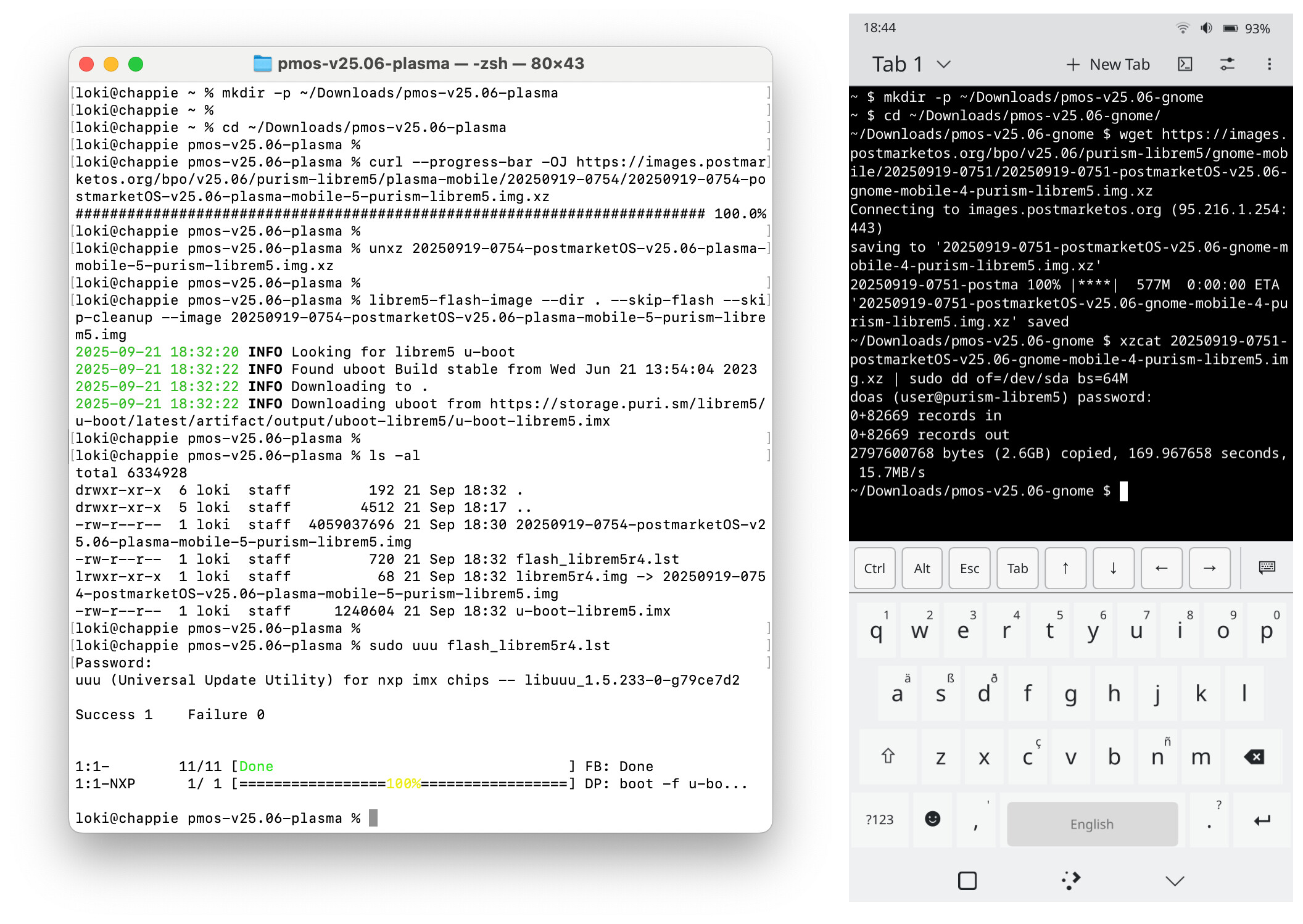
For the purposes of testing I went with the stable release images, it’s not always the case but I find the bleeding edge releases of software is where things may not work as expected and more likely to run into issues. The URLs for the images I used are detailed in the rough guide below.
I didn’t reference any instructions, I work with image files quite often so just went in blindly poking at it with that previous experience of working disk images, it was reasonably painless.
I first flashed postmarketOS Plasma Mobile edition to the phone from PC, I’ve recreated the steps below. Note that it is assumed that uuu is installed on the PC, these steps also make use of the librem5-flash-image script again on the PC, while not strictly nesseccary, if you don’t have the required uuu command set and a copy of uboot knocking around on your system, librem5-flash-image is a conveient way of getting those files, far easier than the manual generation method is to document.
Flashing postmarketOS (Plasma Mobile) from PC to Librem5
From a terminal on the pc…
Create a working direcotry and cd into it
mkdir -p ~/Downloads/pmos-v25.06-plasma
cd ~/Downloads/pmos-v25.06-plasma
Download the image, I would normally suggest wget for this as it’s more likely to be available on the PC but I’m currently on macOS and wget is not available so I’m using curl, if curl is not available on your PC substitute the next step with wget <URL>
curl --progress-bar -OJ https://images.postmarketos.org/bpo/v25.06/purism-librem5/plasma-mobile/20250919-0754/20250919-0754-postmarketOS-v25.06-plasma-mobile-5-purism-librem5.img.xz
Decompress the image
unxz 20250919-0754-postmarketOS-v25.06-plasma-mobile-5-purism-librem5.img.xz
Use librem5-flash-image to generate the uuu command set and download the latest available version of uboot, the script will also create a link to the image to be flashed. As mentioned previously, if you have these files already you can skip this step but you will want to make sure you link to the image file or ensure that the command set (.lst file) references the correct image file
librem5-flash-image --dir . --skip-flash --skip-cleanup --image 20250919-0754-postmarketOS-v25.06-plasma-mobile-5-purism-librem5.img
Flash the image to the Librem5 phone, you could probably combine this with the previous command, however I have split into a two step process because I’m on macOS and have yet to investigate if I can configure the system to allow standard users to write to this type of USB device, until then uuu requires elevated privilages and I like to limit the use of sudo to only when absolutely nesseccary so librem5-flash-image runs as a standard user and only uuu runs with elevated privileges. It is assumed here that you have connect the phone to the PC via USB and have put the phone into download mode, uuu does not provide any instructions for this on it’s output, if your phone is not in download mode uuu will just sit with a message that it’s waiting for a known device to show up.
uuu flash_librem5r4.lst
After uuu completes, your phone should automatically reboot into postmarketOS.
Flashing postmarketOS (Gnome Mobile) to uSD card in phone from postmarketOS (Plasma Mobile) on phone
From a terminal on the phone…
Create a working directory and cd into it
mkdir ~/Downloads/pmos-v25.06-gnome
cd ~/Downloads/pmos-v25.06-gnome/
Download the image
wget https://images.postmarketos.org/bpo/v25.06/purism-librem5/gnome-mobile/20250919-0751/20250919-0751-postmarketOS-v25.06-gnome-mobile-4-purism-librem5.img.xz
Write image to uSD card (this will take a good few minutes, no output is generated while this process is running)
xzcat 20250919-0751-postmarketOS-v25.06-gnome-mobile-4-purism-librem5.img.xz | sudo dd of=/dev/sda bs=64M
Reboot the phone into uSD card. It did take me a few attempts to get this step done, this particular phone has never been easy to get it to boot from uSD and knowing nothing about how postmarketOS works just adds to the challenge. Anyway, after a few attempts of various key combos and sequences I ended up at a postmerketOS debug console which instructed me to enter pmos_continue_boot to continue to boot normally. After entering the command, the phone continued to boot into postmarketOS Gnome Mobile from the uSD card. I am able to switch between the install on eMMC (by just powering up the phone normally) and the install on the uSD (via the debug console), I feel there must be a more elegant way of switching to the uSD card install but as I don’t intend to keep postmarketOS on the phone I didn’t investigate any further, I also suspect that much of it may be down to my phone and it’s general stubourness to boot from uSD in general.