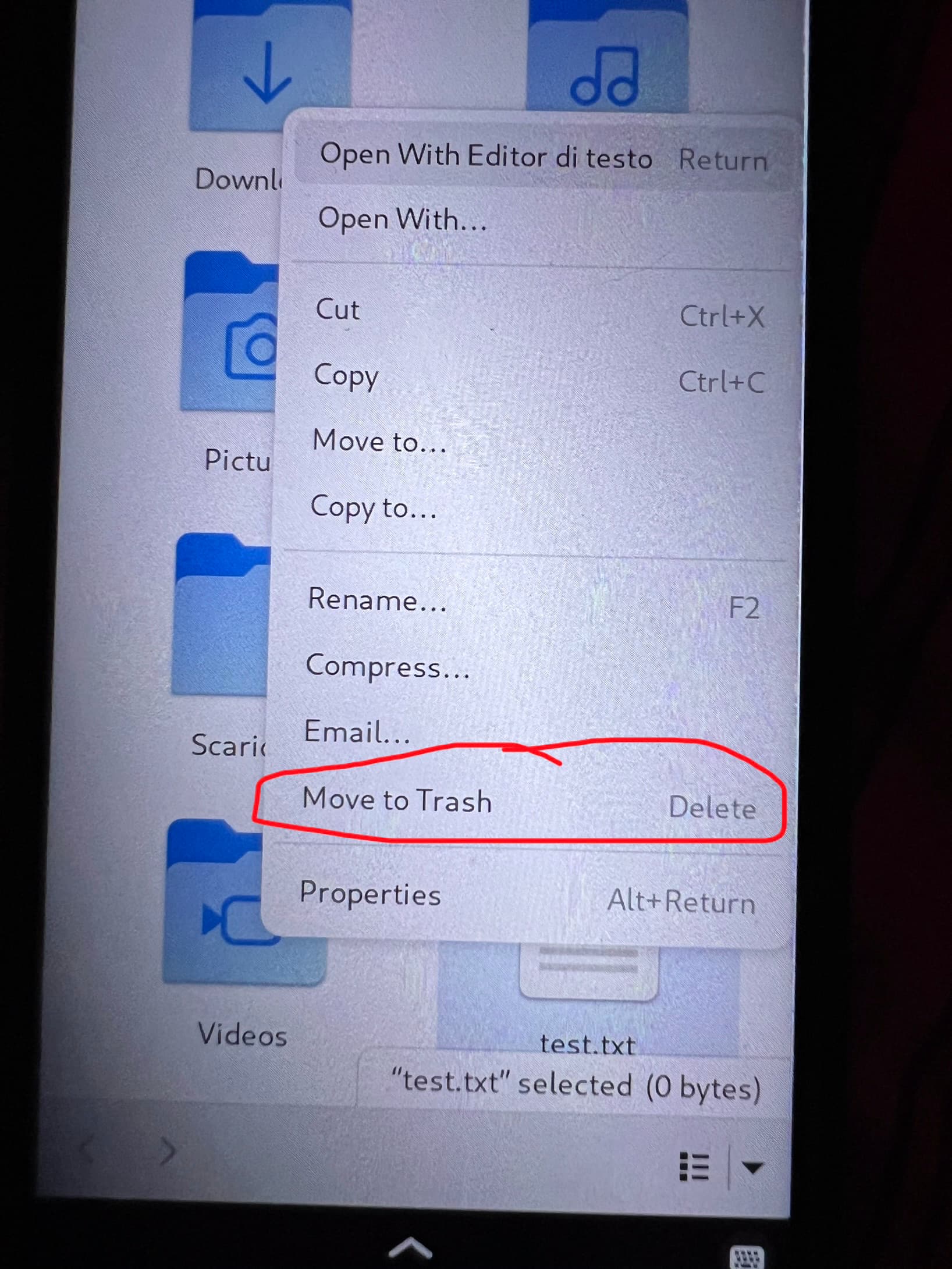
Hi so I’ve got a little issue: the only way to delete files as far as I know for the default files app is to long hold which pulls up the same thing you get when you right click a file on a computer. There are plenty of options there but none can be clicked since the menu that shows up only stays as long as your finger stays on the screen. Tricky.
Is there a way to delete these files from the files app, or am I stuck to working with the terminal?
I understand that you have the “Files” application open and are wanting to delete files using the on-screen keyboard.
The default on-screen keyboard requires some polish for a better initial user experience, and Purism is working on software updates to make this easier. In the meantime, the workaround is to switch the keyboard layout to the Terminal layout, which does contain a Del key.
Within the Files application, single-tap the file you wish to delete.
From the “English (US)” keyboard layout (default), tap the “globe” icon, directly to the right of the 123 button.
Tap Terminal in the pop-up menu.
To the left of the “Enter” button, tap the button called >_.
Near the right side of the keyboard, tap the Del button. The file will be placed in the Trash.
Optional: Tap the ABC button to return to the alphabetic keyboard.
I hope that these steps help you delete files more easily until future software updates make this simpler.
At one point I had the same issue and didn’t feel like using the terminal because I ended up with some ridiculous paths and filenames that I didn’t want to type - I selected and cut a few files, then went into the trash and pasted them there.
Yeah, I’ve been doing it like that and obviously it works, as most things on the L5, but it’s a small functionality that if I can get it improved I won’t hesitate
It is fixed in newer file manager releases, which require a backport of that application or an OS upgrade, which is still a testing build (unstable release, so it may or may not break something). I would recommend just to wait until the stable OS releases come out. Until then you can do what FranklyFlawless told as workaround. If you are familiar enough with Linux and don’t mind to try to solve it for you right now with one of the told methods, it’s your choice. But if something goes wrong, it’s your own fault and not Purism or someone else (which doesn’t mean we do not help as far as we can).
I’m doing it similar to FranklyFlawless, but in detail different. In file manager settings I switched to double tap to open folders. This way I can mark files much more easily. With terminal keyboard you don’t even need to use the menu button → just hit the keyboard delete-button. One step less. But menu-button is still very useful to open context menu for different tasks. If you are familiar with keyboard shortcuts: most of them work on Byzantium. With Ctrl plus folder-touch you can multiselect files or F2 to rename files etc, just like on desktop PCs.