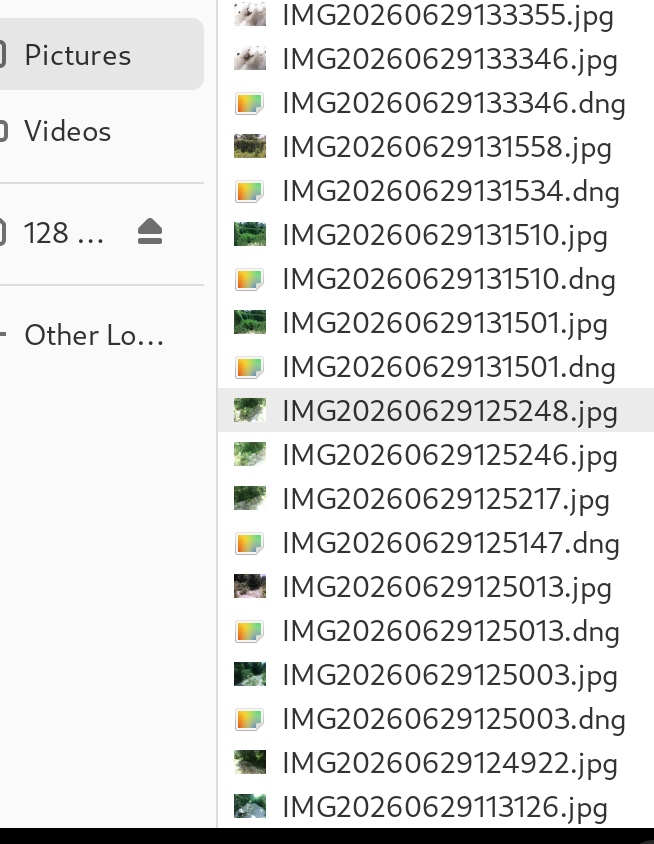
when viewing photos from the files folder i can manually adjust the icon size but when attaching to message the icons are so tiny its hard to see what photos i want to attach. heres an example. also every time i take a photo it saves two files. a jpeg and dng. jpeg is like 1.7 mb the dng is 26mb. it also means i have to scroll through double the photos. im assuming one is for messages and other is better quality. idk if theres another way to do it but having bigger icons would help search through it all at least.
So if you are certain that you aren’t going to reprocess the DNG files, you can use the postprocess script (or a cron job) to wipe out the DNG files.
Or if you haven’t reached that level of certainty, you can at least move the DNG files somewhere else.
Again, the ability to control this in the application would be great e.g. DNG files saved to µSD card and JPG files saved as now.
Doesn’t data get written to µSD over a relatively slow USB link?
the dng file size was more a side note. i wonder if itd be possible to have files get compressed when sending and then you dont need the jpegs… but the main point you see in the screen shot i attached. when i click attach from messages it pulls up that screen to attach pictures from picture folder but you see how small the icons are? its hard to see the photos i want to attach as they are so small and i have to squint to see one photo to the next if photos are similar. is there a way to to make those icons bigger so its easier to scroll through them? in “files” theres a plus minus to modify icon display size.
Toggle list and grid view
Within the Files application, you are currently in “list” view, which better illustrates filenames/types/sizes, but is not ideal for images. To better show images, you want to switch the view to “grid” (aka “icon”) view.
To do this, tap or click on the view mode toggle button at the bottom-right corner of the application window:

If any image files exist within the selected folder, you should see much larger image thumbnails appear.
To change back into list view, tap or click the toggle view button again, which should now look like this:

Increase or decrease icon size
To increase or decrease the size of each file thumbnail:
-
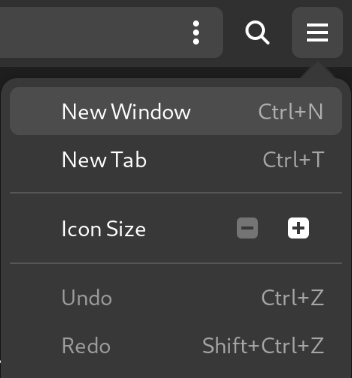
Tap or click the hamburger menu button in the upper-right portion of the Files application window:

-
Under Icon Size, tap or click the corresponding - or + button to decrease or increase the thumbnail size, respectively:
Yes. But not as slowly as writing to a full eMMC drive. 
If going the cron job route, it doesn’t really matter how slowly this happens. If doing it in postprocess then, yes, it could limit the rate at which you can capture images. I’m unsure on whether the implementation is synchronous or asynchronous, for example.
Well, most systems recognise JPEGs. It is a very widely supported image format. So you probably still need the JPEG eventually. But I guess if your images are exclusively for your personal use, you can avoid JPEG if you want.
But let’s say that you intend to postprocess manually and so you want the DNG and you don’t want the JPEG at the time of capture and you will hold off interchanging the image with any external system until after you have postprocessed …
This is not my expertise but it seems that lossless compression of images is a bit “research” and probably beyond what Purism wants to spend time on.
Needless to say that it would take a while before a new image format is universally supported (web pages, emails, embedded in documents, file manager, forums, social media, online photo libraries, virus scanning, … and also GPUs if you want it to be fast). So really you want to use an existing image format.
Reportedly the “WebP” format supports lossless compression of images. Although it is arguable that the world doesn’t need to give Google more power.
This is folder sizing issue with the file browser. I do not know how to change it. I also find it annoying as I cannot see a tiny image when I am trying to text a picture to someone.
This is a great way to resize the contents of the folder within Nautilus. However, the issue of trying to “attach” something to an email or a text is not being addressed. Is it possible to change the interface of an “attachment” within an email or text?
I think this improvement will either come with Dawn or later but not on Crimson.
Having an icon view in the file picker (not Nautilus/Files) was only recently implemented (2022).
I’ve seen that before in the files system to make the icons bigger. The specific issue I’m having is when I am in chatty and I click on the attach button it shows me the list of files in a small list form which isn’t helpful as I’m trying to attach photos. Is there away to make the files appear larger in list mode when clicking the attach button. I changed icon size in files wondering if it would change it in chatty but it did not. See original photo that’s how they look when I click “attach button” and I have to scroll though them when there that small.
Ah okay read the other posts, so it looks like it is an issue that doesn’t currently have a solution yet, but maybe with next upgrade.
Pinch-to-zoom capability would be useful there.
Or if Ctrl + from the keyword worked on that screen.