Separate Firefox profiles compartmentalize your browser activities, e.g. general browsing vs. banking, home vs. work, etc., with the same or completely different settings for each profile.
Create an additional profile in Firefox ESR on the Librem 5
1_ Open Firefox-ESR and type about:profiles in the address bar, then tap the Enter key on the keyboard:
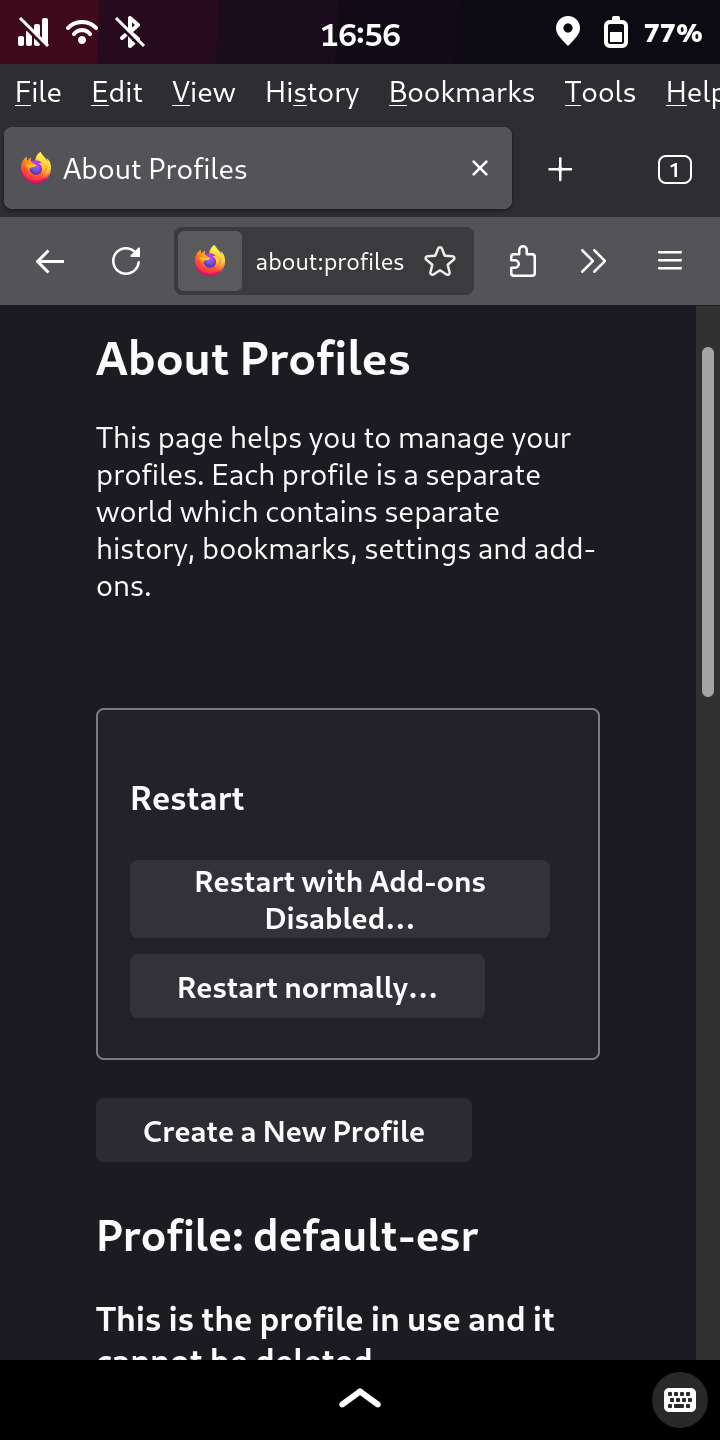
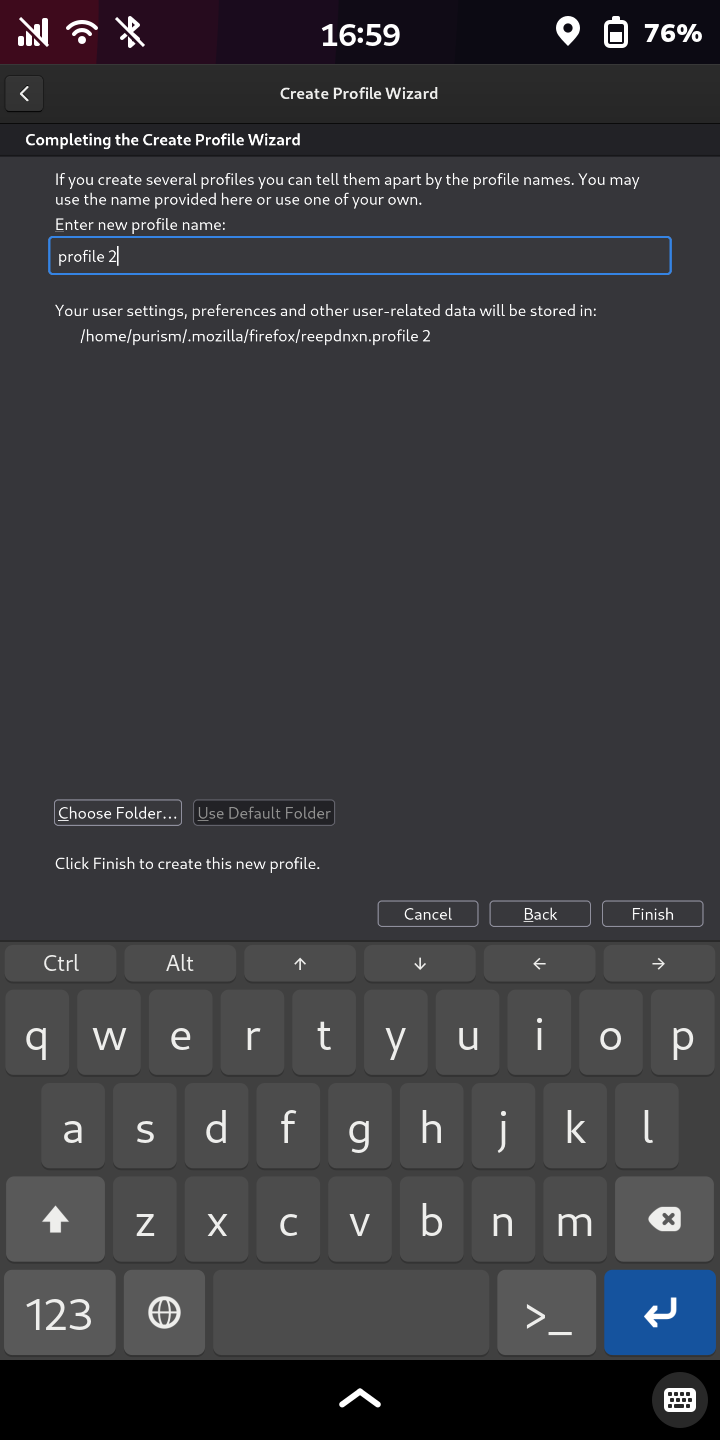
2_ Then tap “Create a New Profile” and give it a name, for example “profile 2;” then tap Finish:
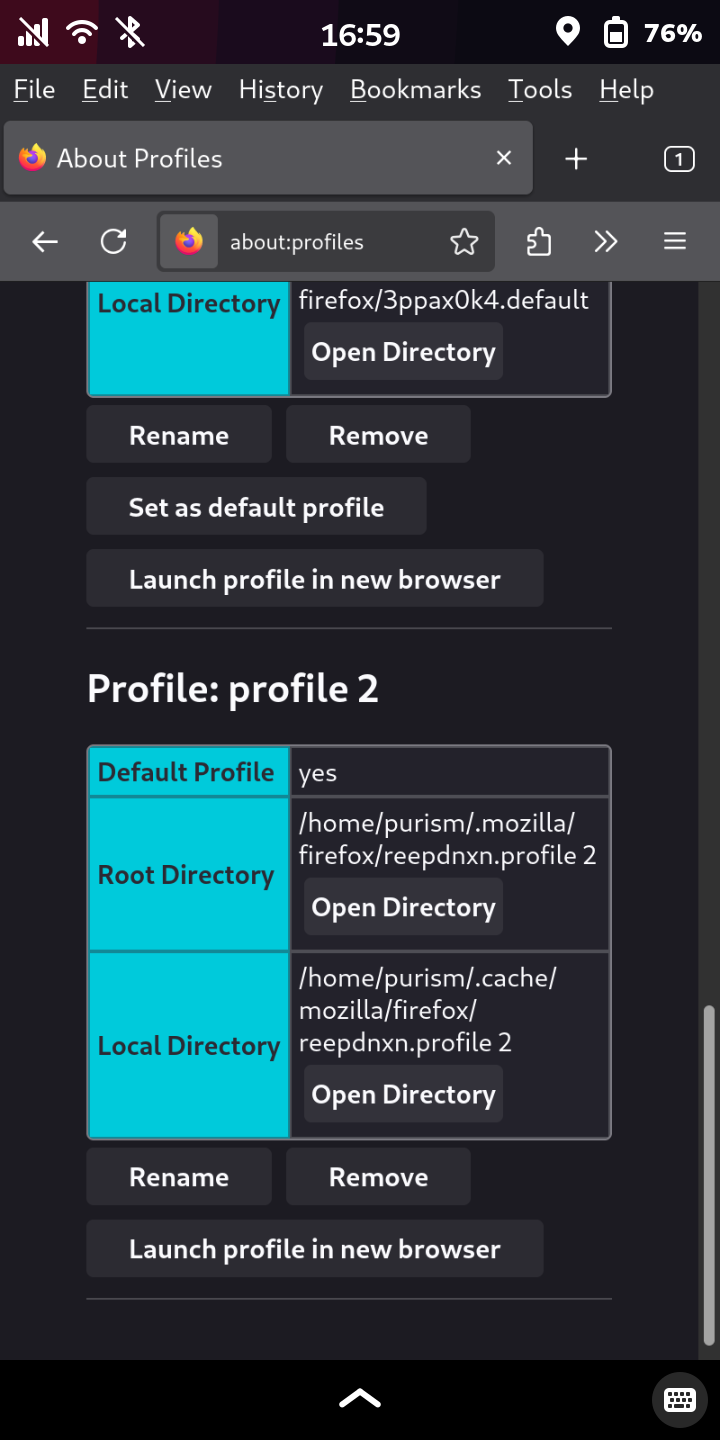
3_ New profile (“profile 2”) is created:
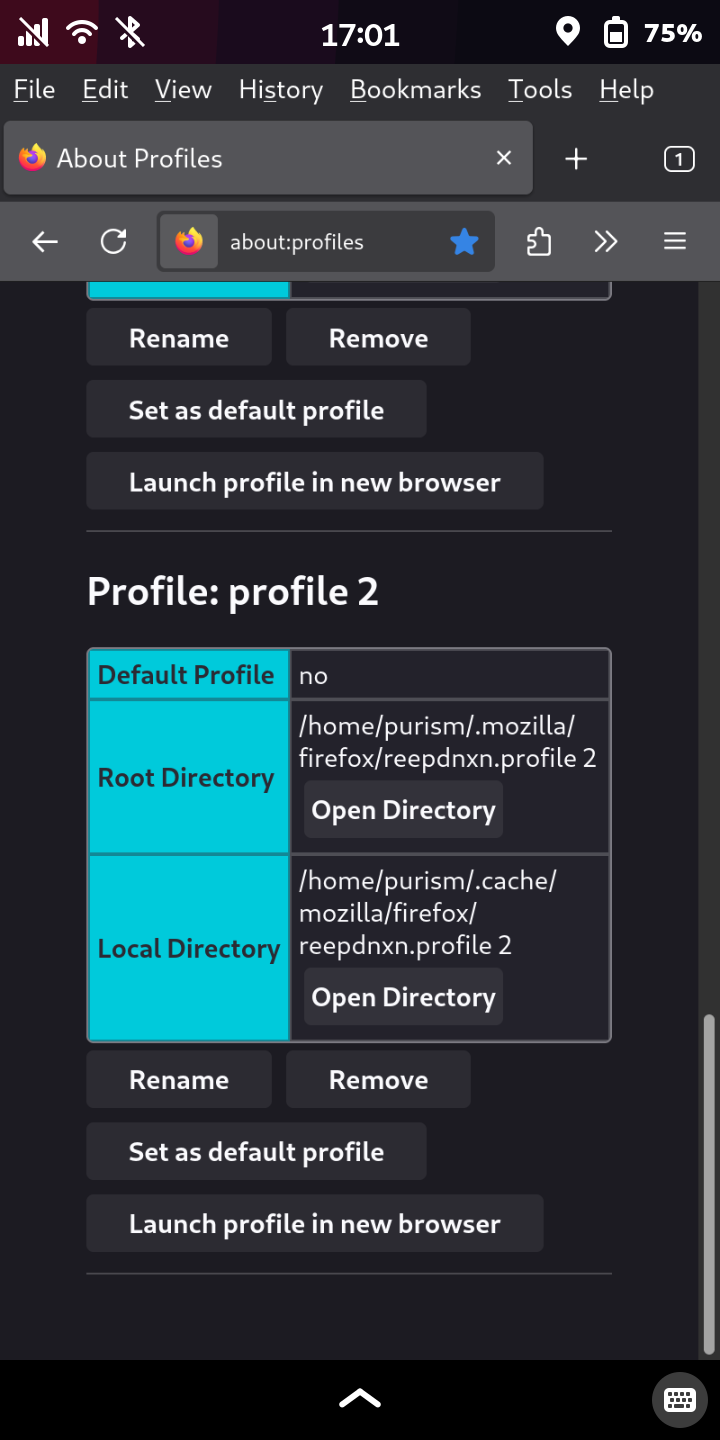
4_ Scroll up to your original profile; Set it as default profile by tapping the indicated button (you can change this later if you want):
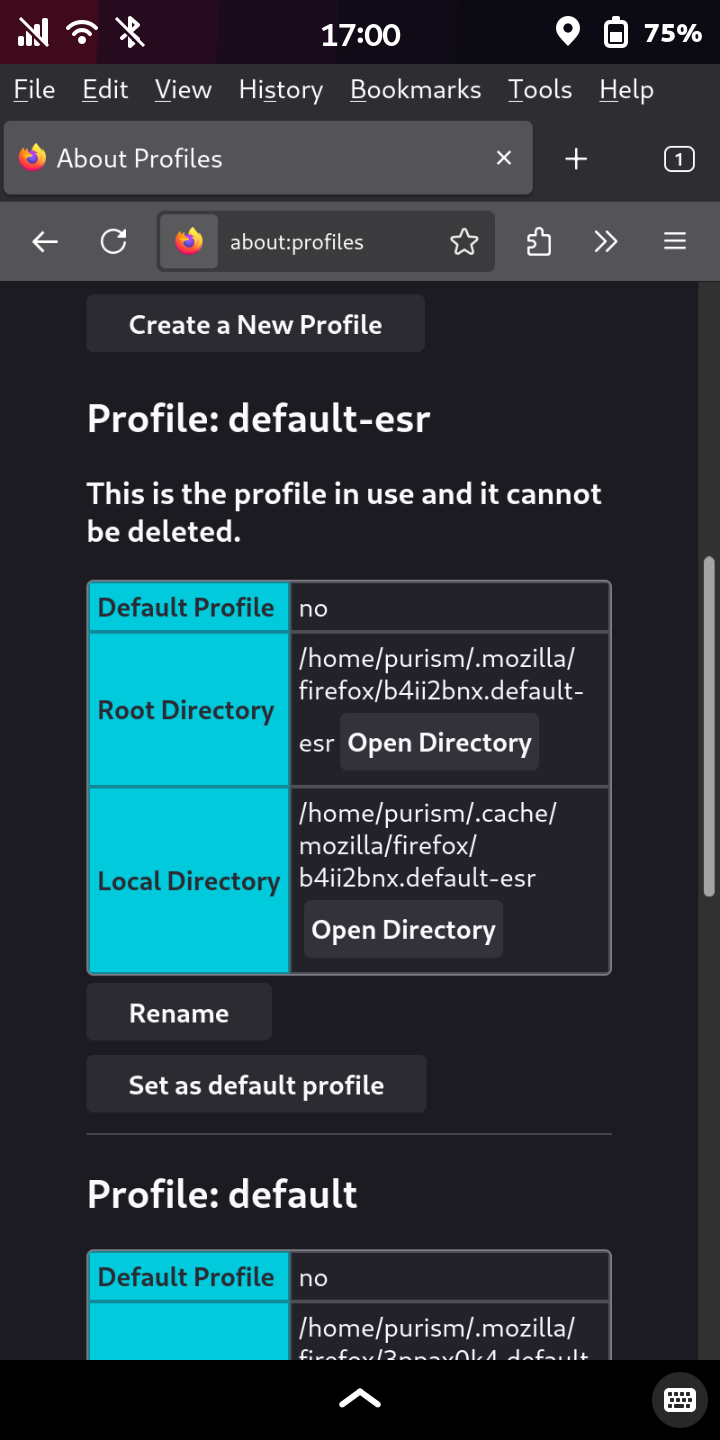
5_ Scroll down to “profile 2” and tap “Launch profile in new browser:”
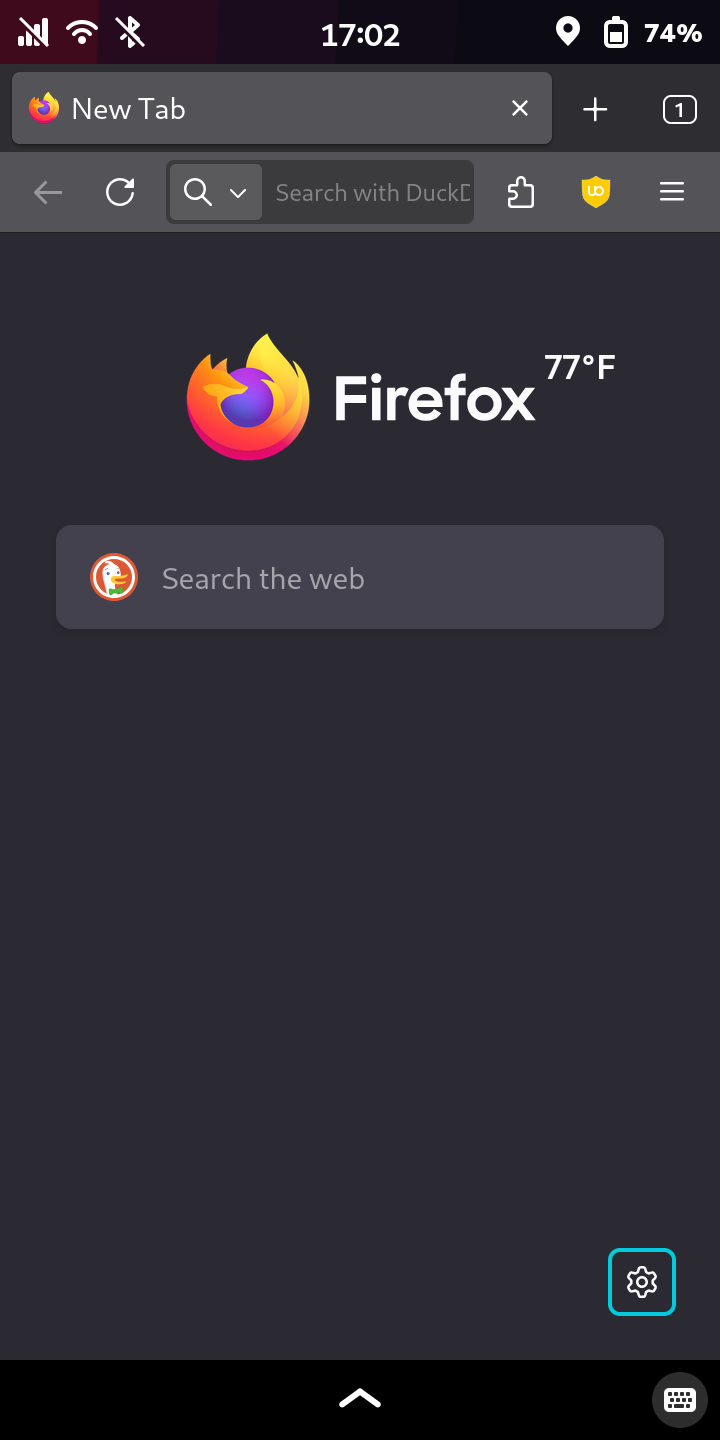
6_ New profile is opened in separate browser:
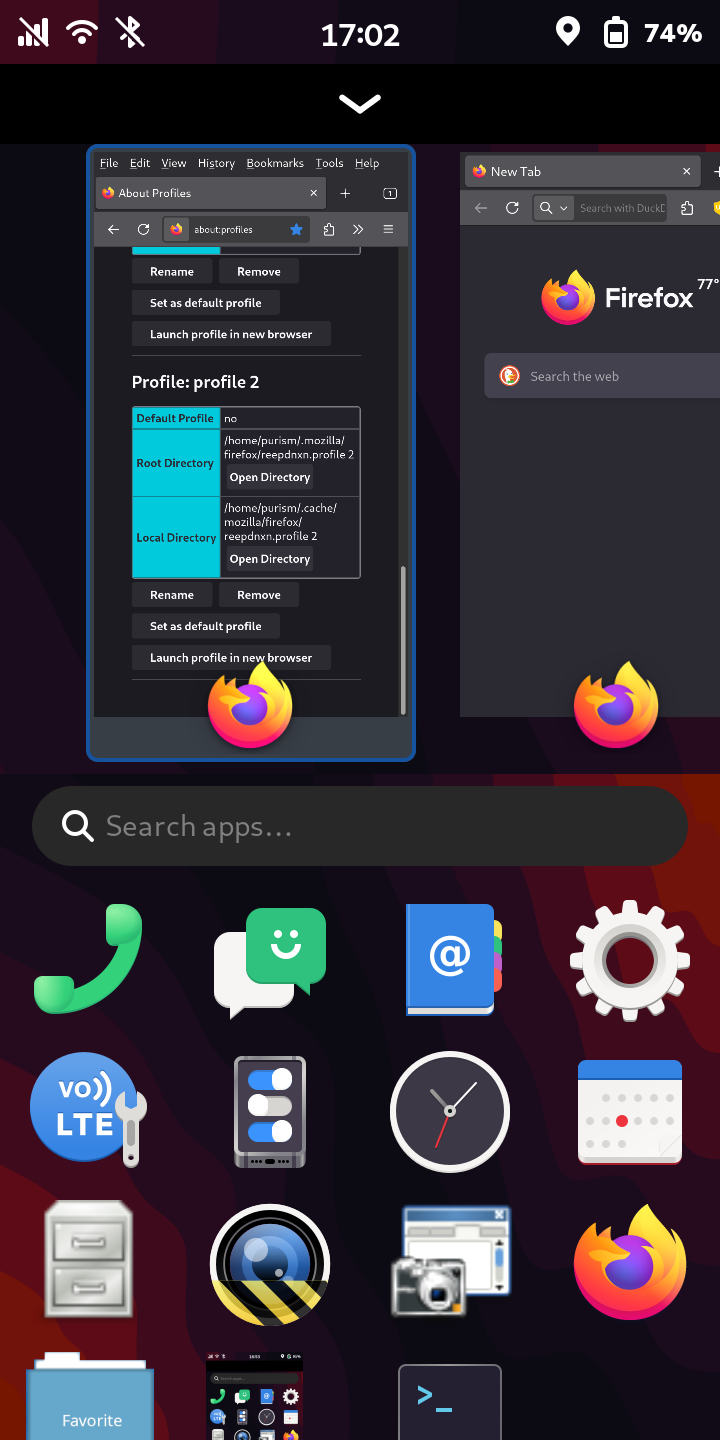
7_ Minimize (i.e. swipe up) to choose default profile browser or “profile 2” browser (or launch one from within the other by going to about:profiles again):
===
Create a dedicated desktop launcher for the new profile
You can continue to manage profiles as above, or you can create a separate launcher for it.
8_ Create a desktop application to launch Firefox “profile2” directly. I’ve named it “FirefoxP2” on my Librem 5. Copy the text below into an empty text file, and save it as FirefoxP2.desktop
[Desktop Entry]
Name=FirefoxP2
Exec=firefox-esr -P "profile 2"
StartupNotify=true
Terminal=false
Type=Application
Categories=Utilities;
Icon=/home/purism/.local/share/icons/FirefoxP2.png
GenericName[en_US]=FirefoxP2
(You can name it something else if you want; just make sure the name matches everywhere, as above.)
9_ Place the FirefoxP2.desktop file inside this directory:
/home/purism/.local/share/applications
10_ Make the file executable:
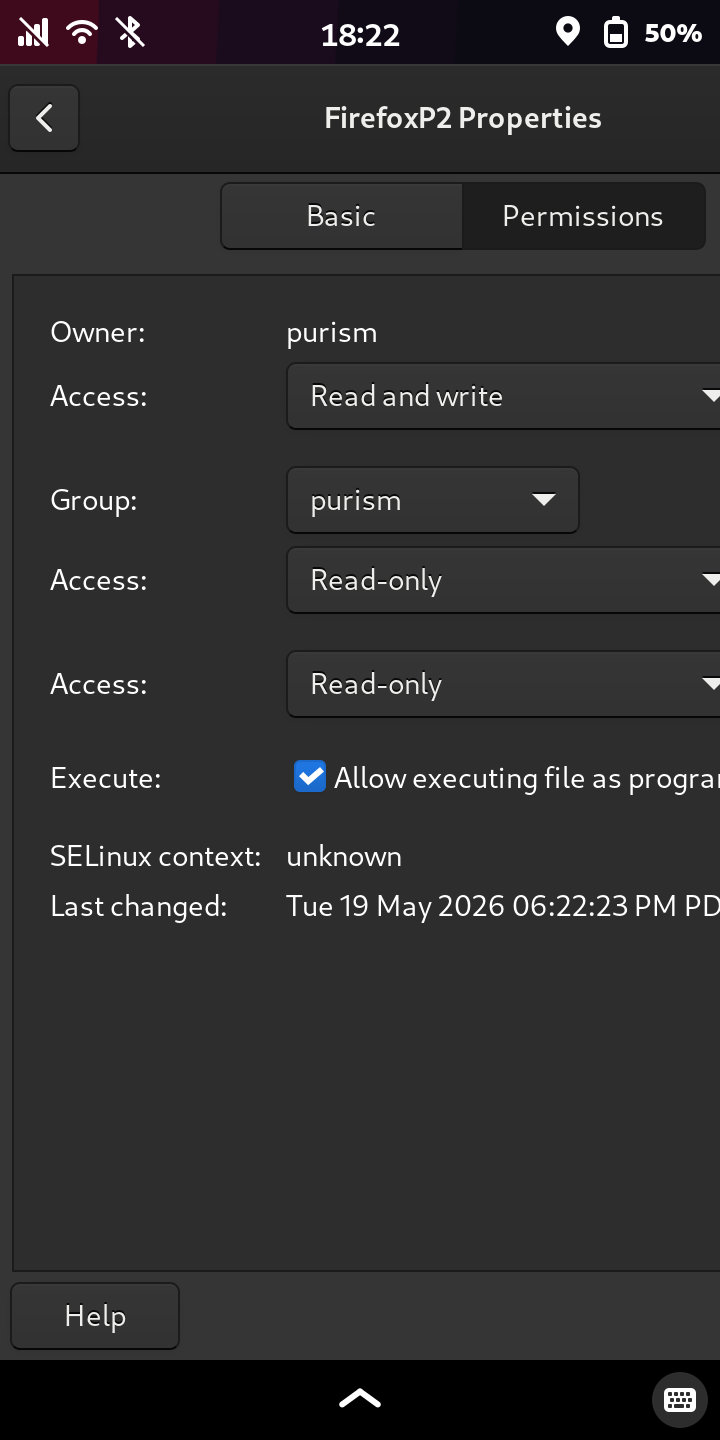
From within the Files app, use the main menu to view the properties of the FirefoxP2.desktop file, and under the “Permissions” tab, make the file executable.
11_ Create an icon for launching FirefoxP2.
I’ve copied the original Firefox-ESR icon from /usr/share/icons/hicolor/48x48/apps.
Then I transferred it to a computer where I have GIMP (GNU Image Manipulation Program) installed. Opening the icon in GIMP and - to keep things simple - perform a simple color inversion:
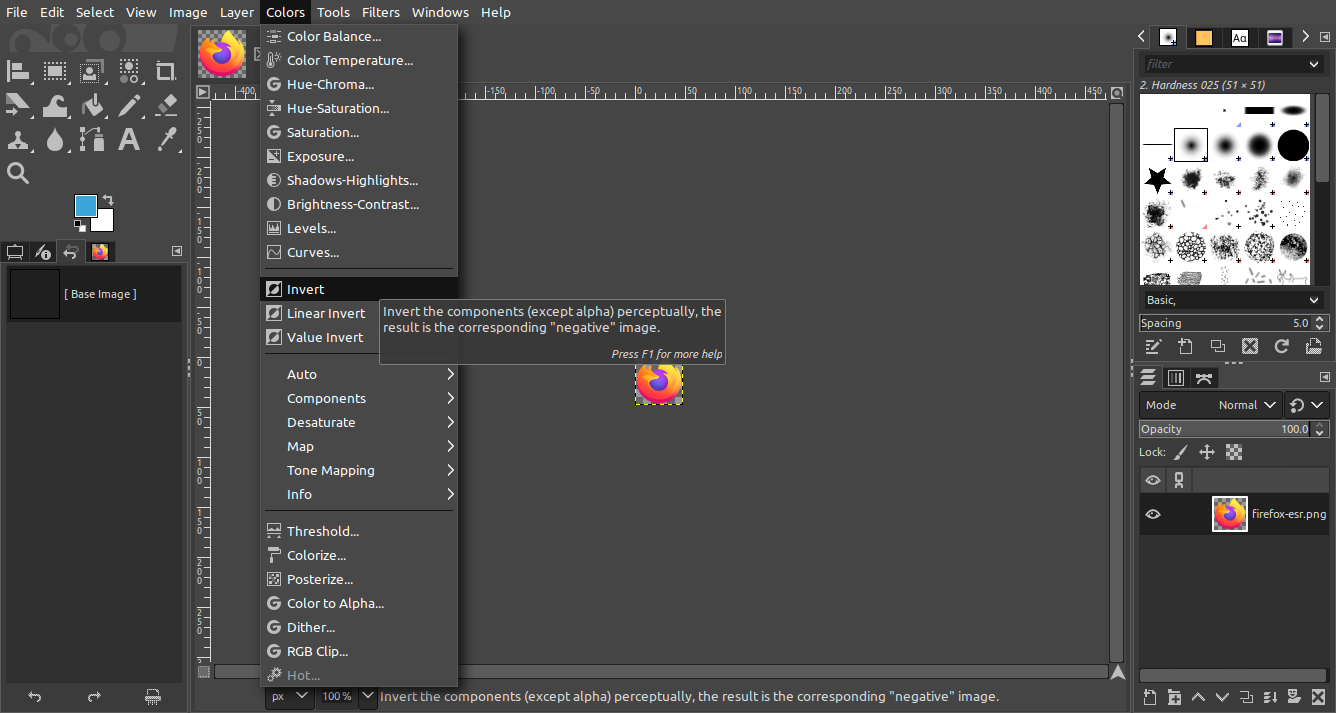
Result:
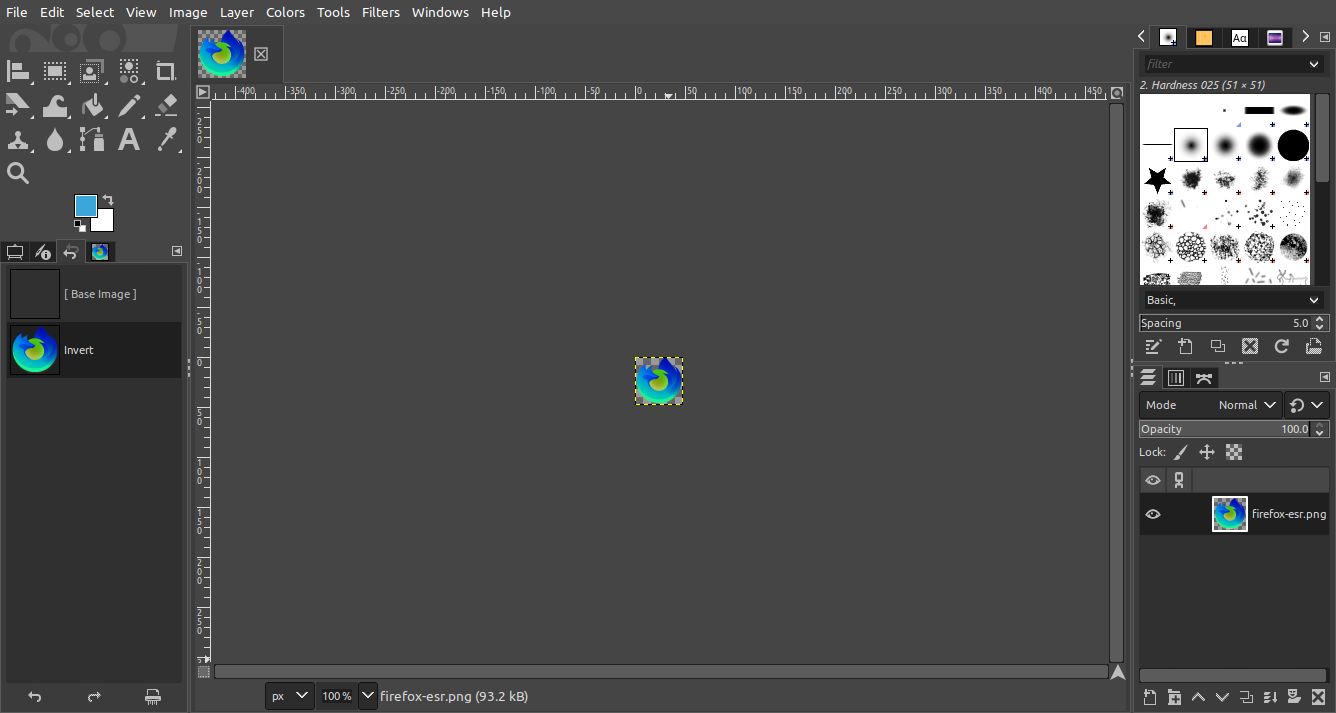
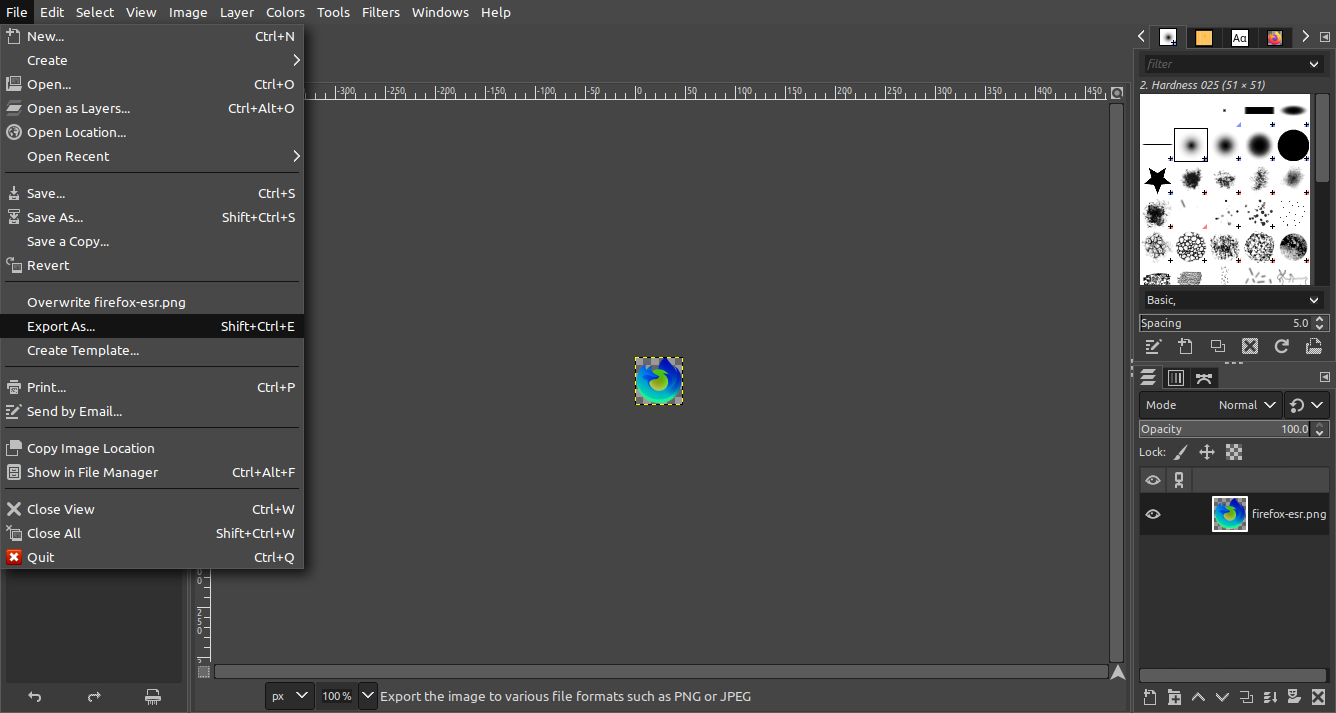
Then export the modified image with a new name (“FirefoxP2.png”):
12_ Next, move the new icon into the following directory on the Librem 5:
/home/purism/.local/share/icons
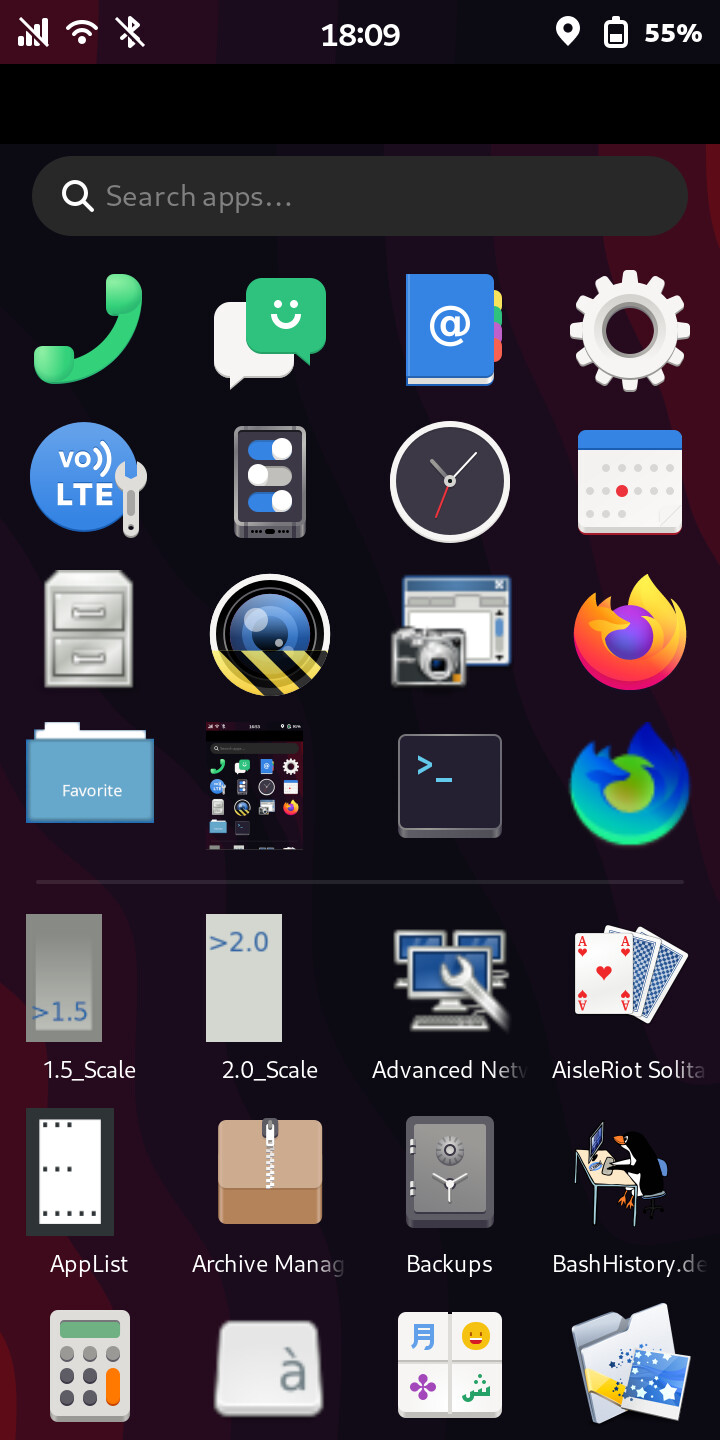
13_ That results in a new, separate desktop launcher for FirefoxP2:
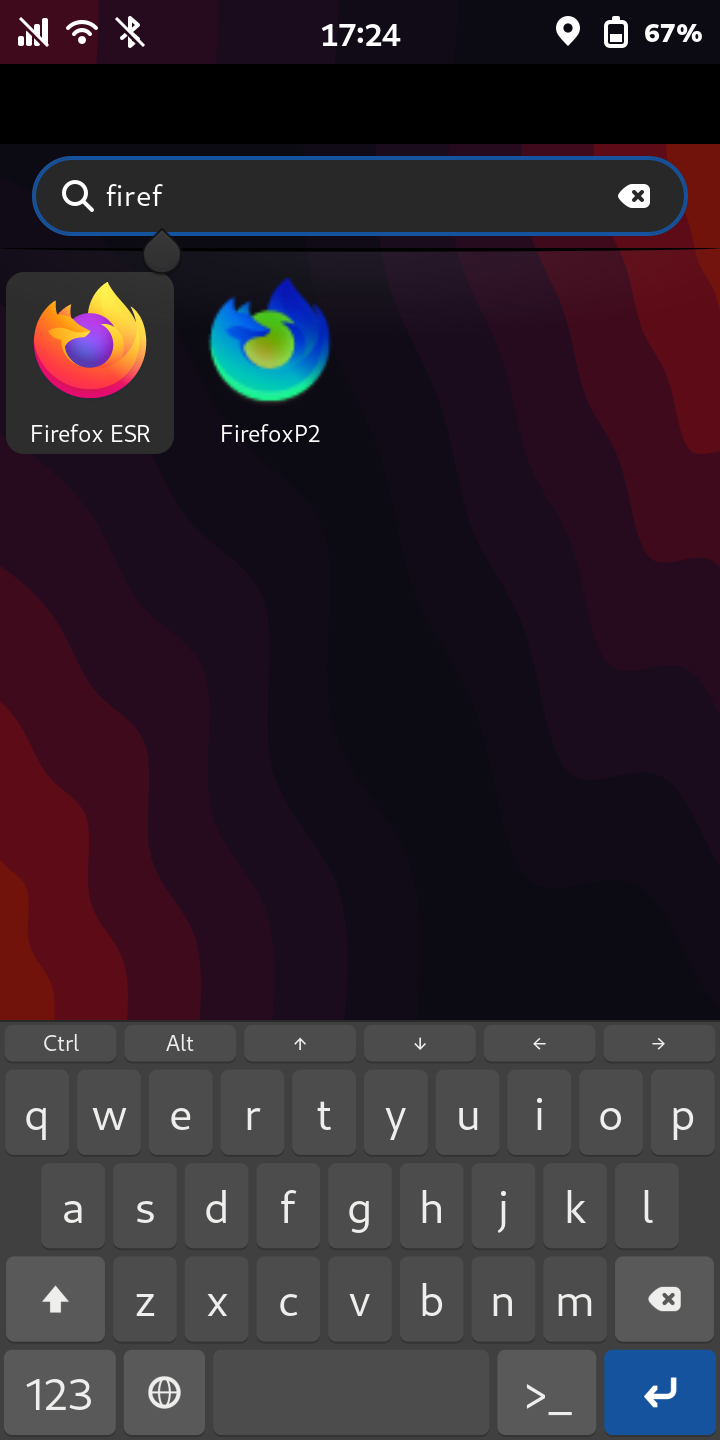
I’ve moved it to my Favorites, together with Firefox (default profile):
===
Finally, don’t forget to apply whichever settings and privacy measures you want in the new profile, import bookmarks, etc.