I don’t have much experience with database applications, so there’s probably a better way to do this, but here’s how I exported call and message history.
1_ CALL HISTORY
Call history is stored as a database here:
/home/purism/.local/share/calls/records.db
To open and read the .db, you can install DBBrowser for SQLite:
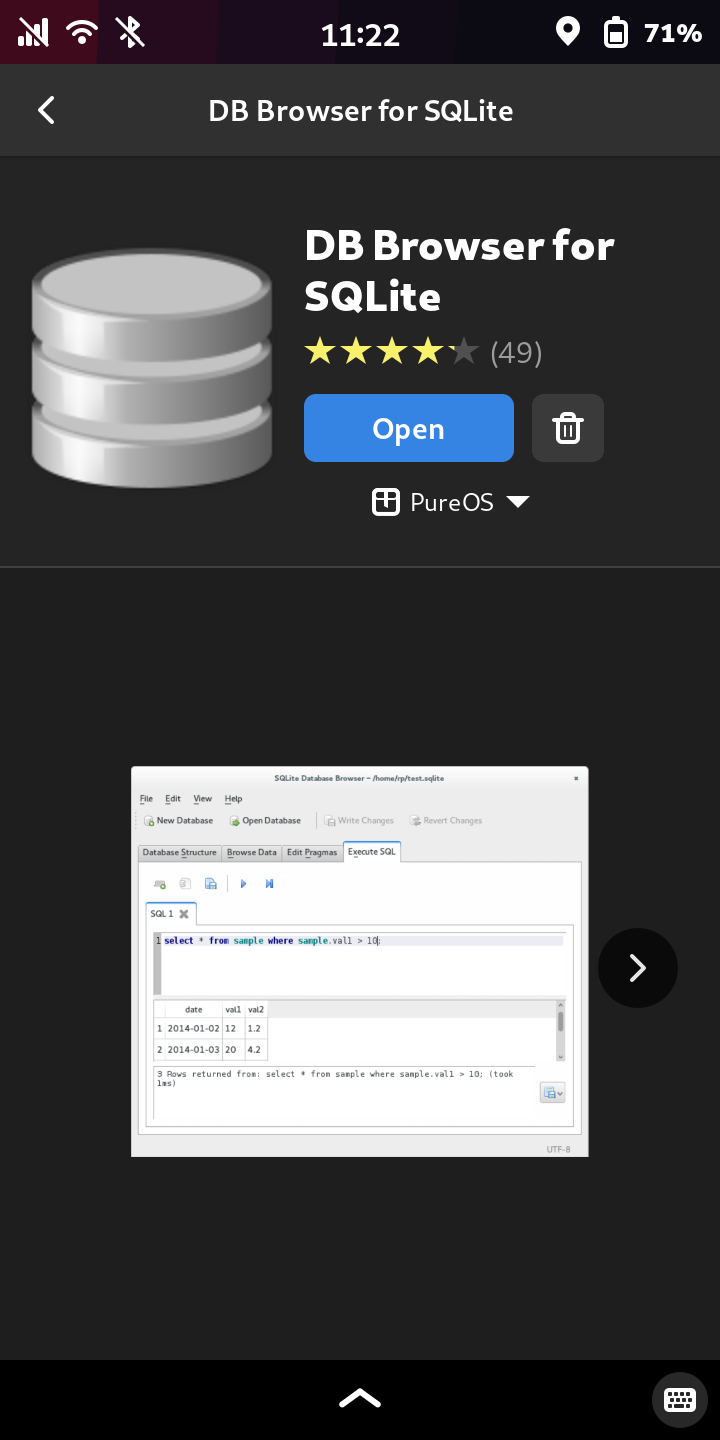
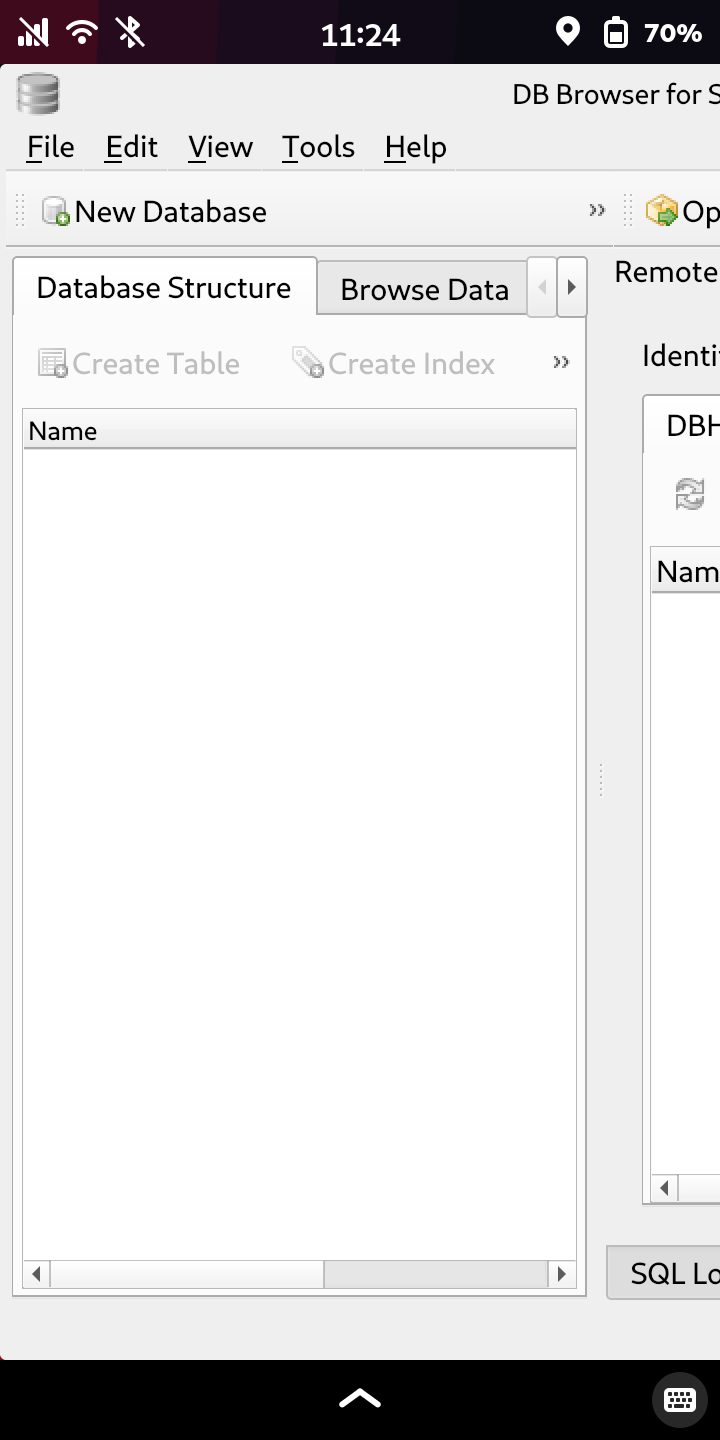
Launch the application:
Select Open Database:
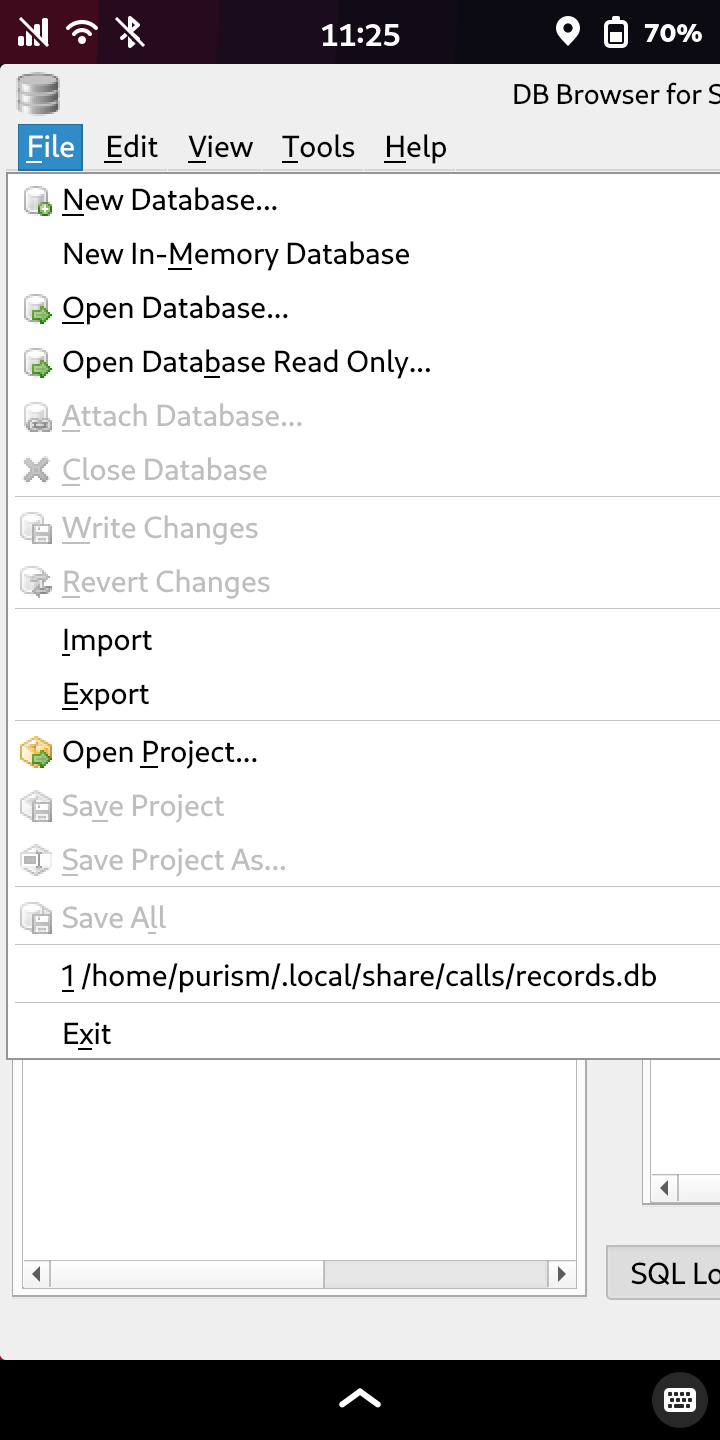
The records.db now opened:
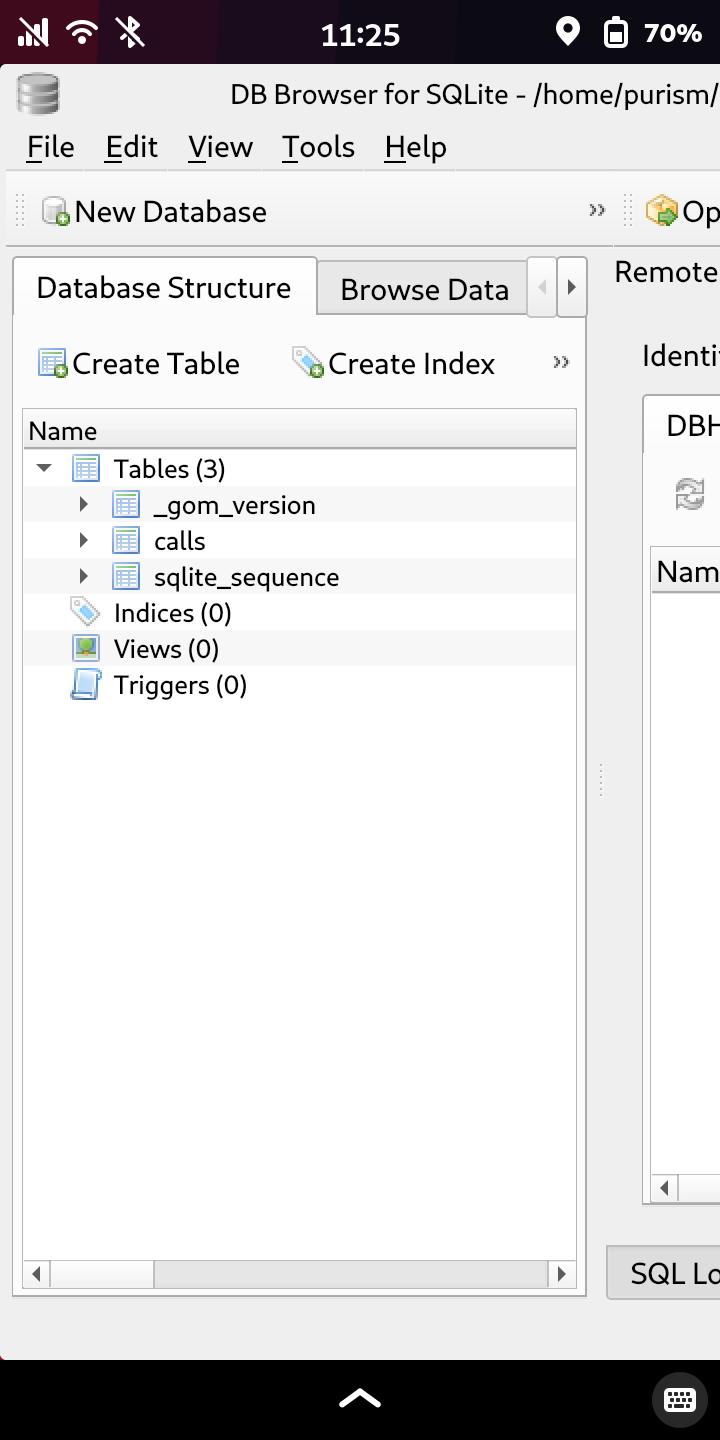
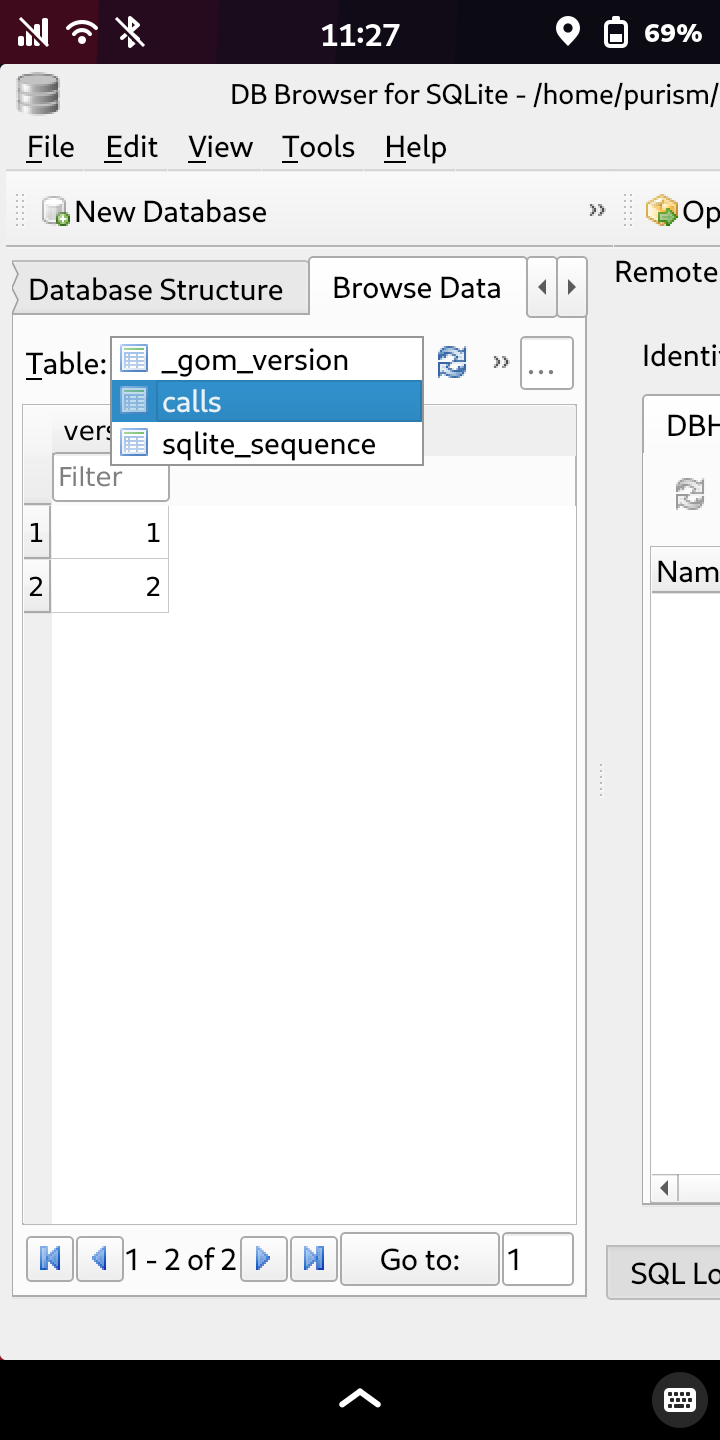
Click the Browse Data tab and select Calls (if you want to view them in the application):
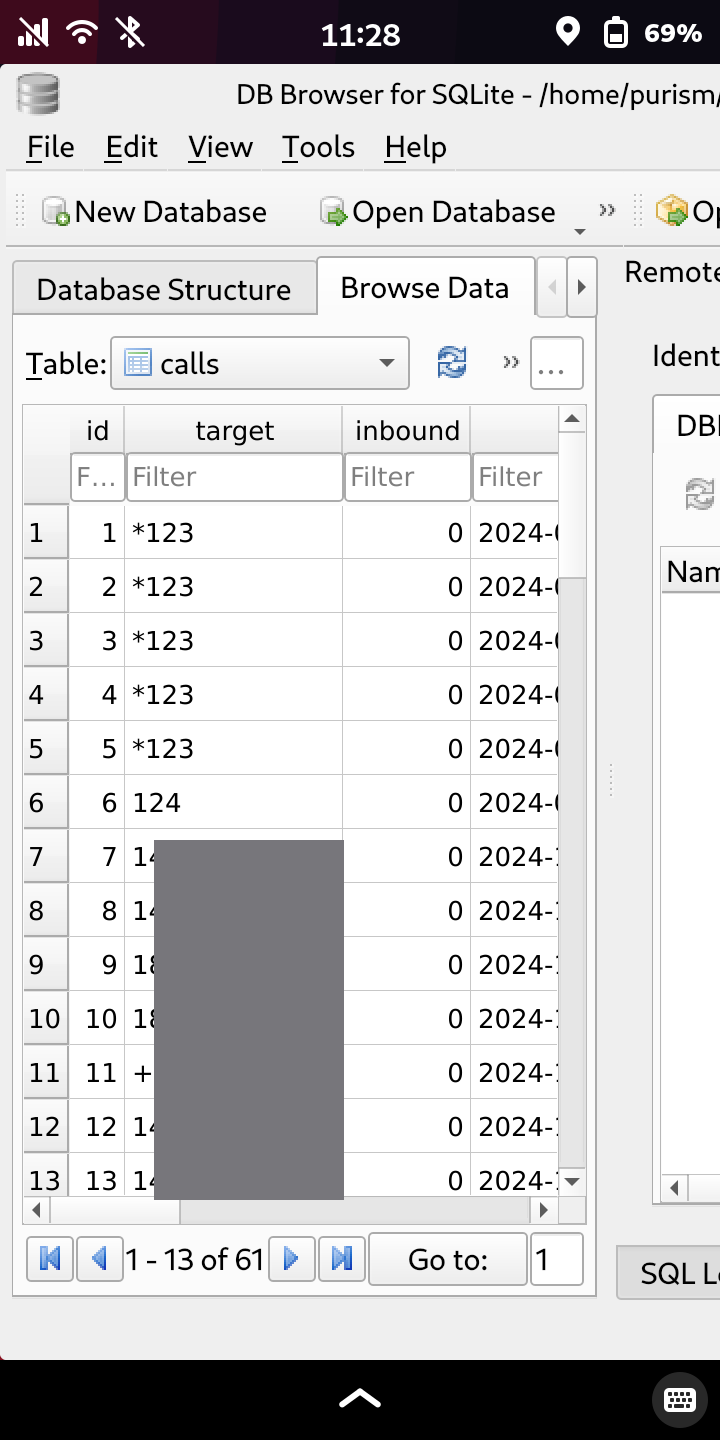
You can scroll horizontally to view dates and start/end times of calls; scroll down to review the entire list:
[Here, you can either just select all the rows and columns, copy, and paste into a text file or spreadsheet, or export the data as follows.]
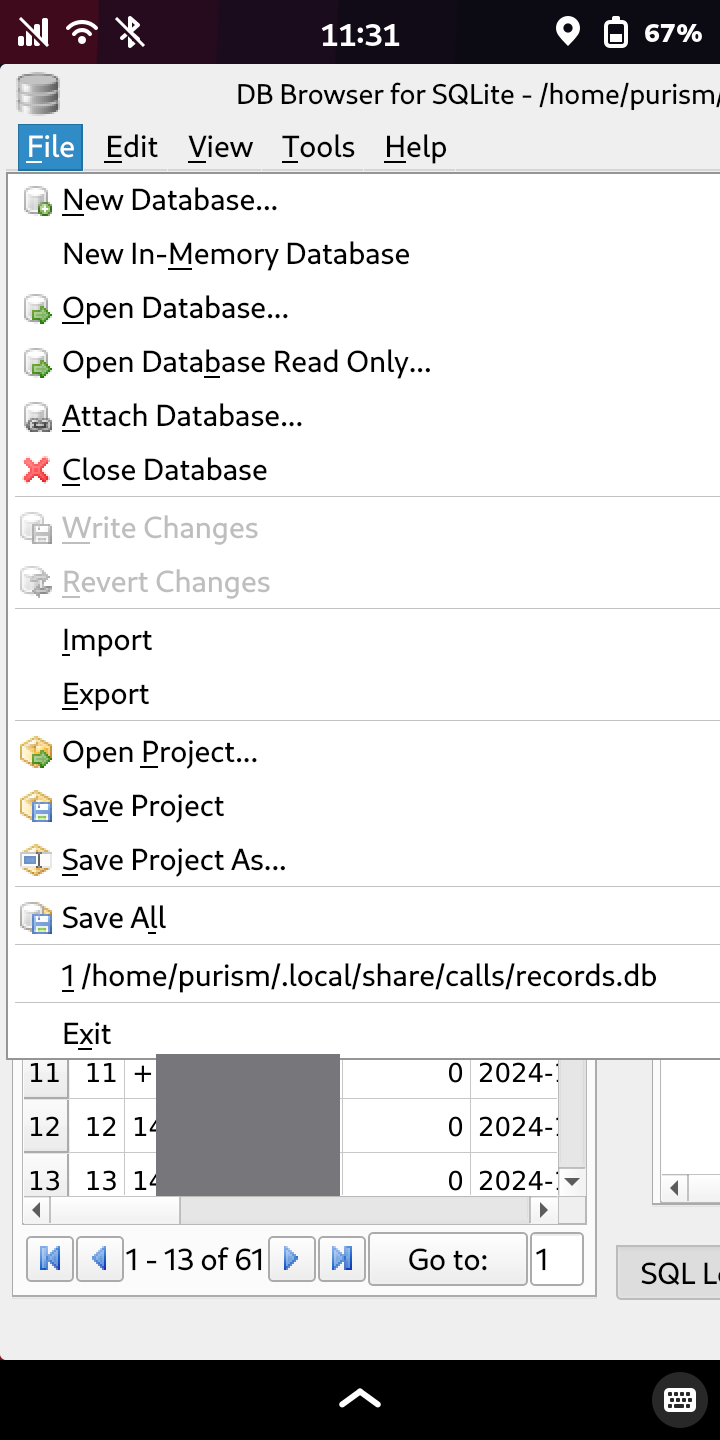
To export, go to the File menu, select Export:
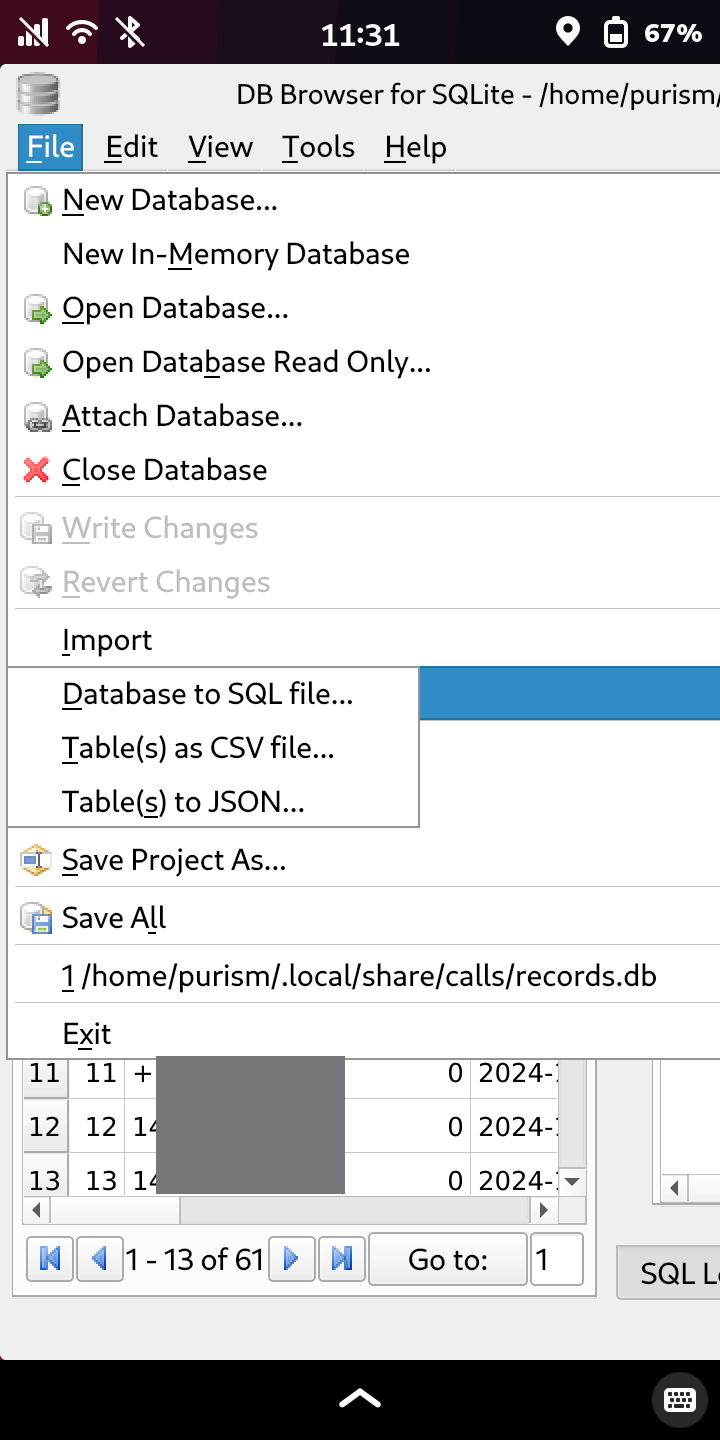
Then at the next prompt select Table(s) as CSV file:
The resulting .csv displayed as a text file (masked for privacy, and abbreviated):
id|target|inbound|start|answered|end|protocol
1|*123|0|2024-07-29T21:14:54.080983Z||2024-07-29T21:15:26.963650Z|tel
2|*123|0|2024-07-29T21:16:16.124212Z||2024-07-29T21:16:46.145300Z|tel
3|*123|0|2024-07-29T21:16:56.753340Z||2024-07-29T21:17:21.644772Z|tel
4|*123|0|2024-07-29T21:26:24.519122Z||2024-07-29T21:26:52.740903Z|tel
5|*123|0|2024-09-08T22:37:51.441815Z||2024-09-08T22:37:55.519037Z|tel
6|124|0|2024-09-08T22:38:06.311826Z||2024-09-08T22:38:14.792554Z|tel
7|1xxxxxxxxxx|0|2024-10-14T17:07:49.906081Z||2024-10-14T17:08:22.670383Z|tel
8|1xxxxxxxxxx|0|2024-10-14T17:08:32.426878Z|2024-10-14T17:09:11.013818Z|2024-10-14T17:09:22.892959Z|tel
9|1xxxxxxxxxx|0|2024-10-22T21:42:15.549448Z|2024-10-22T21:42:26.265667Z|2024-10-22T21:42:35.754598Z|tel
10|1xxxxxxxxxx|0|2024-10-22T21:54:58.756174Z|2024-10-22T21:55:08.188782Z|2024-10-22T21:55:28.931300Z|tel
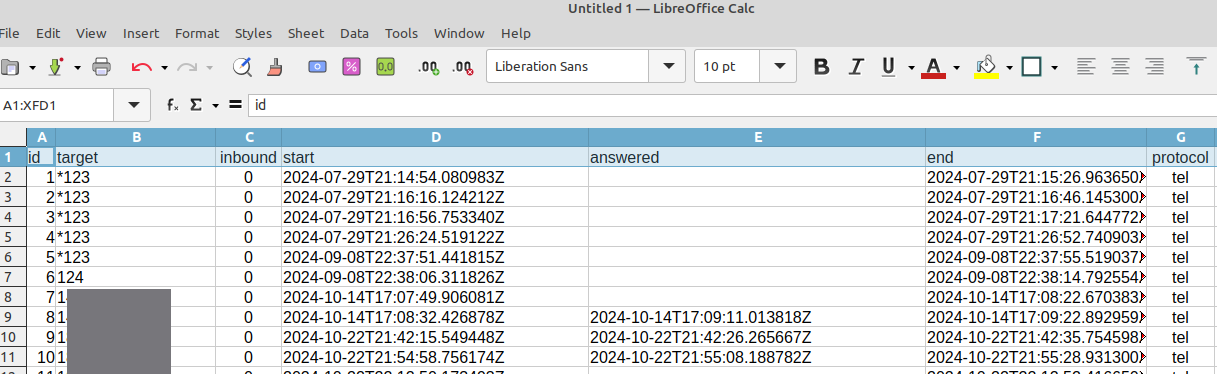
Or saved as a spreadsheet (created on computer):
2_ CHAT HISTORY
Chat history is stored as a database here:
/home/purism/.purple/chatty/db/chatty-history.db
Use the above application in the same way; however, chat history is split into multiple pieces, which will have to be exported (or simply copied and pasted) individually (… unless somebody here knows a more efficient way…?).
The ones named messages and users are probably the most useful:
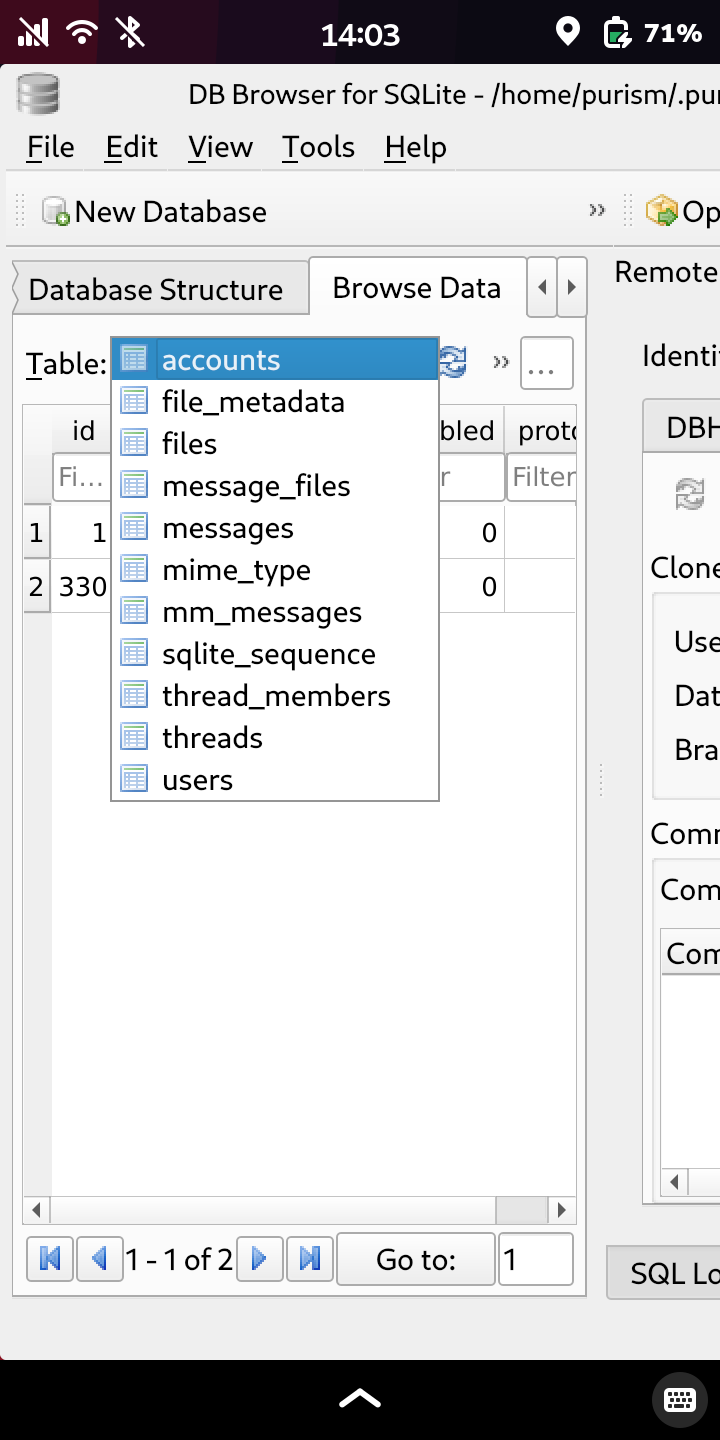
Imported into a spreadsheet, they’ll be separate tables, but you can use a lookup function to match the “sender ID” identifier in one table with the “username” or “alias” (telephone number, contact name) in the other table, for displaying in a unified view.
3_ MMS
Media items from MMS are found in this directory:
/home/purism/.local/share/chatty/mms
… stored as separate folders named in the format of date/time/uid. The uid can be used to match the media to the messages in the exported chatty tables.