In the meantime I had prepared a new boot disk using Rufus. This time I chose to allocate a persistent partition size (previous default was 0) and I changed the File System to NTFS. I tried booting from this USB and now (after selecting “Test or Install PureOS”) it doesn’t exit to Busybox and launches GUI environment. I can browse the files but I do not see any of the files or applications that were on the Librem prior to having this problem. Is it possible to recover the files and apps that we’re on there?


Maybe you would be better off using Etcher.
I doubt that the file system will end up as NTFS. In any case, once booted
mount -l | grep '/ '
(note the space after the slash)
That will show you the file system type of the root file system on the boot medium (and also the associated disk device). I would expect ext4 or some other Linux file system type.
That’s because the root file system is on the boot medium (the USB flash drive) when you do a LiveBoot. Your actual internal disk may not even be mounted. So you may have to mount it first - and then you need to make sure that if you are looking for files, you are looking on the internal disk, not on the boot medium.
mount -l | grep /dev
will give you an idea of what is mounted (unfortunately with some other ‘noise’ file systems also listed).
I believe that you have an NVMe drive as internal drive. So you could see something mounted from /dev/sdXN (the USB boot medium) and something mounted from /dev/nvmeNnNpN where X and N are replaced by actual characters. However if you are using LUKS (encryption) on your internal drive’s root partition (are you?) then you need to account for that in the mount and output will be somewhat different.
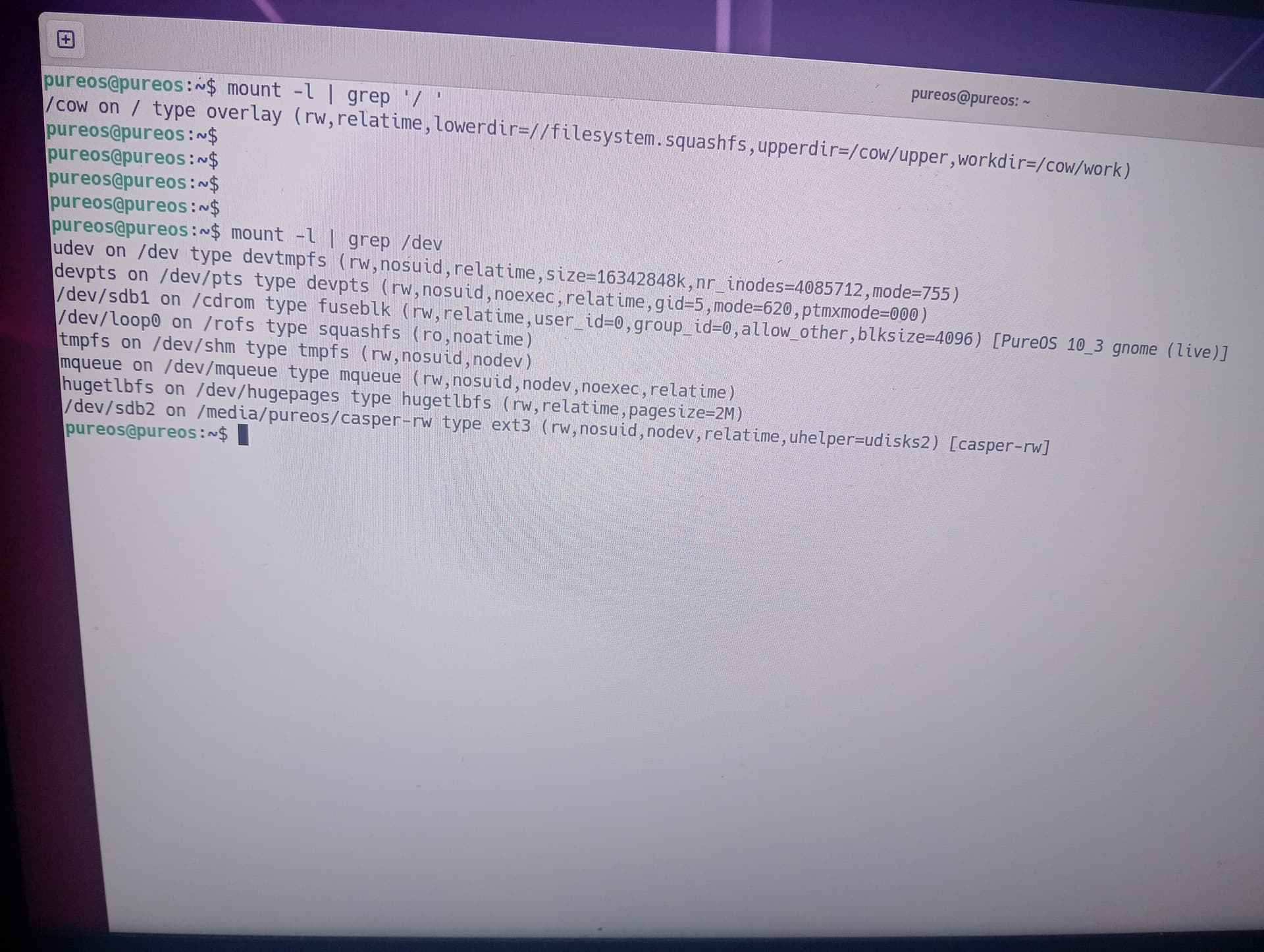
I wanted to use Etcher but couldn’t get it to work. I choose the file and then nothing ever happens - unable to choose Target. No luck getting thru to support or help on the forums. Below are the output of the mount commands. I do not know if I’m using LUKS on the internal drive - that’s beyond what I know about the computer.
OK, when you boot the Librem 14 (normally, not LiveBoot) does it ask you for the LUKS encryption passphrase?
FWIW, the first command that I gave you, mount -l | grep '/ ', didn’t give the desired output because I overlooked the fact that LiveBoot is using an overlay file system whereby a small writeable file system allows you to make temporary changes to a larger readonly file system (the actual LiveBoot root file system, which is itself a compressed file system). The writeable upper file system overlays the readonly lower file system.
This doesn’t matter because obviously the LiveBoot is working much better now anyway.
You can see from the output of the second command that your internal disk is not mounted.
When I first got Librem 14, I never got asked for an encryption passphrase. The someday I started getting a prompt after boot up to enter in a passphrase. I have a screenshot below that I took awhile back when this happened.

OK, so before PureOS was just loading into a blank screen, were you able to get past that prompt either by entering a passphrase or by ignoring it or something else … so as to boot normally?
I would guess we are tying in with: Please unlock disk message when booting up but I can’t tell how the two topics relate together or whether the earlier issue was resolved.
Looking at your two earlier recent topics, it seems as if your install is heading south and you have an urgent (retrospective, ideally) need for a backup - so that you can reinstall from scratch.
Yes, correct. Before getting the blank screen, it was coming up with the please unlock disk message. I wasn’t able to enter anything. Then I discovered that if I hit Enter a few times, the prompt would appear again and at some point I could type in a password. It’s here that I entered the system password, and then it launched the GUI environment and all was good.
Then at some point, it stopped coming up with the unlock disk message and just went to the blank screen wit ha small cursor flashing up in the top left.
At this point I’d be happy just to be able to save some files. Then I can just reinstall the OS and start new.
Thanks for your help
OK, first attempt would be: Do a LiveBoot, launch a files explorer app, then click on the internal disk. If you are lucky, it will prompt you for the passphrase to mount the encrypted file system.
If that doesn’t happen at all then second attempt would be more difficult because you can mount it from the command prompt but it’s difficult to talk someone through it blind.
I should add that this is only useful if they have the LUKS passphrase. Some useful commands:
a. lsblk -f
Lists all disks and formats even if they are unmounted. This will tell if it’s LUKS. It’s not too hard to mount them (sudo cryptsetup luksOpen [device] [mapper name] … will prompt for a password and, if it works will unlock to /dev/mapper/[mapper name]. At that point one can just “sudo mount /dev/mapper/[mapper name] [mount point].
b. But instead of just the Files app or lsblk, I would try “gnome-disks”. It’s a brilliant GUI tool for dealing with this stuff (including mounting and unlocking).
1 Like
True for the general case. I took the OP’s immediately previous post to indicate that, yes, he does know the LUKS passphrase.
If you use LUKS and you don’t know the LUKS passphrase, you are generally hosed unless
- you know that the passphrase is weak enough to be brute-forced, or
- you have an unencrypted backup, or
- you have an alternative LUKS slot to unlock via, or
- you have a backup of the underlying disk encryption master key.
When I bootup the computer I normally have two passwords to enter. The first one appears like the image below. Perhaps this is the LUKS password? I don’t know what LUKS is. But the password I normally enter here is what I was entering at the “Please unlock disk” prompt that was appearing at startup.

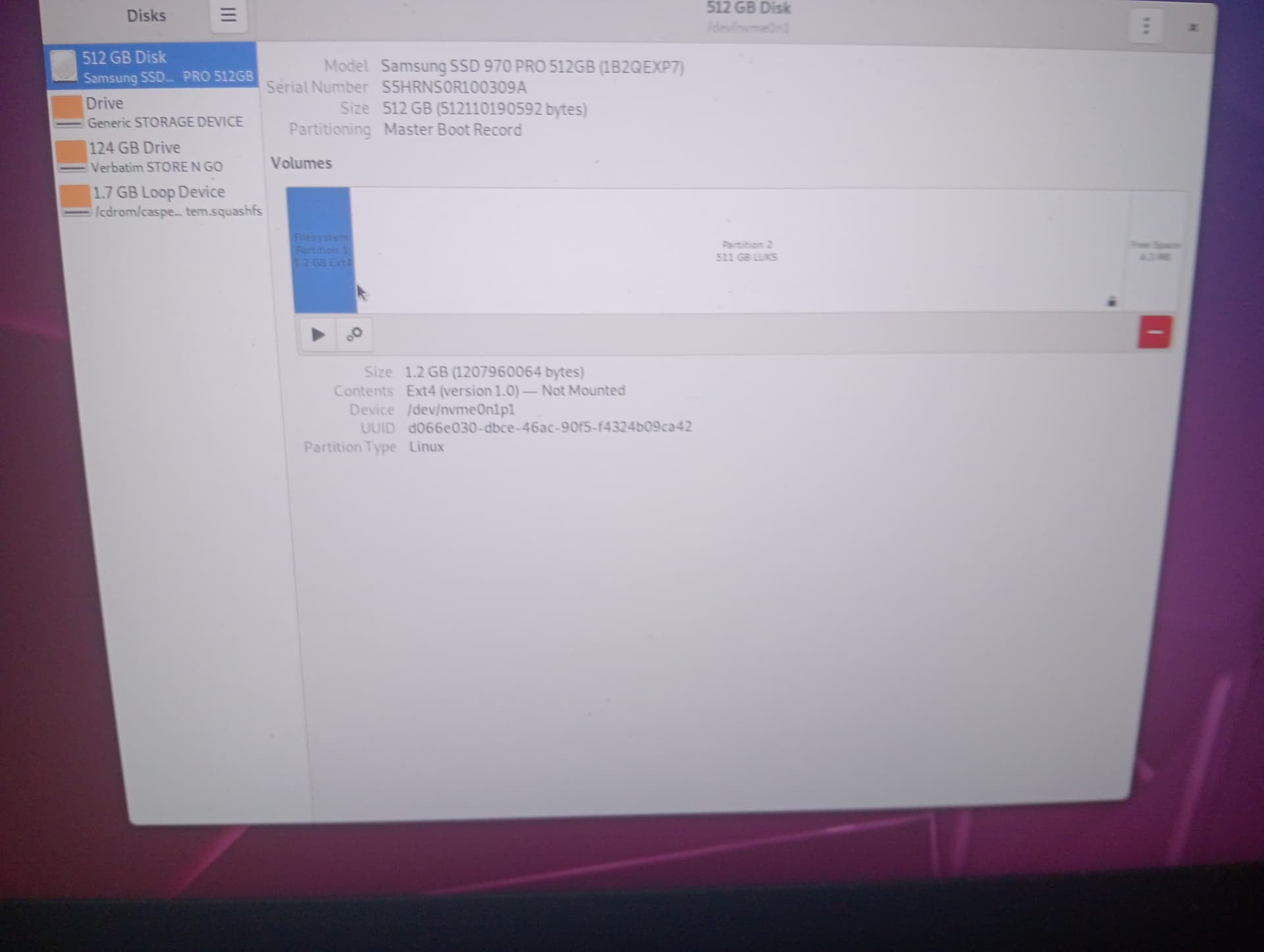
This is what I get when I select disks. I wasn’t prompted for a passphrase and then selecting the 512GB disk.


LUKS is the Linux disk encryption mechanism.
For clarity, you need to use the second partition.
The internal disk has two partitions. The first is a small, unencrypted boot partition. It can be ignored for these purposes. The second is almost all of the disk (in any case, all the rest of the disk) in an encrypted root partition. That is confirmed by the lsblk output.
nvme0n1 is the (whole) internal disk (an NVMe solid state disk). It has two partitions, nvme0n1p1 and nvme0n1p2, with details as shown. The first partition has an unencrypted ext4 file system on it. The second partition is shown as “crypto_LUKS”.
Edit: You can see from the magic hex number (ce32...f0ce) that the LUKS encrypted partition is what it was previously prompting you to unlock.
Yes.
And see what happens if you select it using the Disks GUI (gnome-disks). In terms of the GUI, there is either a (“play” icon = triangle pointing right or a “stop” icon = solid square. The “play” mounts and the “stop” unmounts. The “settings” icon will let you do other things). See what happens when you select the second partition on the Samsung SSD and then press the play icon. It will probably mount it under /media somewhere or /mnt somewhere. At that point you can copy files out … or even make a full backup.
1 Like
And to avoid confusion, this is talking about the icon at the left hand side of the partition, to the left of the settings icon. That is, for additional certainty, when you hover over the play or stop icon, it will tell you what it would do if you clicked it.
If the partition is not mounted, this distinction doesn’t matter.
If the partition is mounted, then there is an additional icon, a play icon, on the right hand side of the partition, but that icon itself is not specifically clickable and nothing comes up if you hover over it. Maybe not ideal GUI design but there you have it …
1 Like
Is the screen below gnome-disks?
If not, I’m not sure how to run it - I do not see stop or play icons.

Yes.
Note where it says “LUKS Encryption … Locked”? Notice the two icons on the tray just below the Partitions area. There is a “lock/unlock” icon and a “settings” icon. Click on the “lock/unlock” icon and provide the “Disk Password”. That will unlock the LUKS partition. It might then mount that partition and describe where that is … or you might have to follow up with clicking the similarly located “play” icon to mount.
1 Like
Ok, after selecting Unlock and entering passphrase - this is what I see. The play button only appears when selecting the Filesystem listed below Partition 2 (511 GB LUKS). Should I proceed with hitting the Play button ?

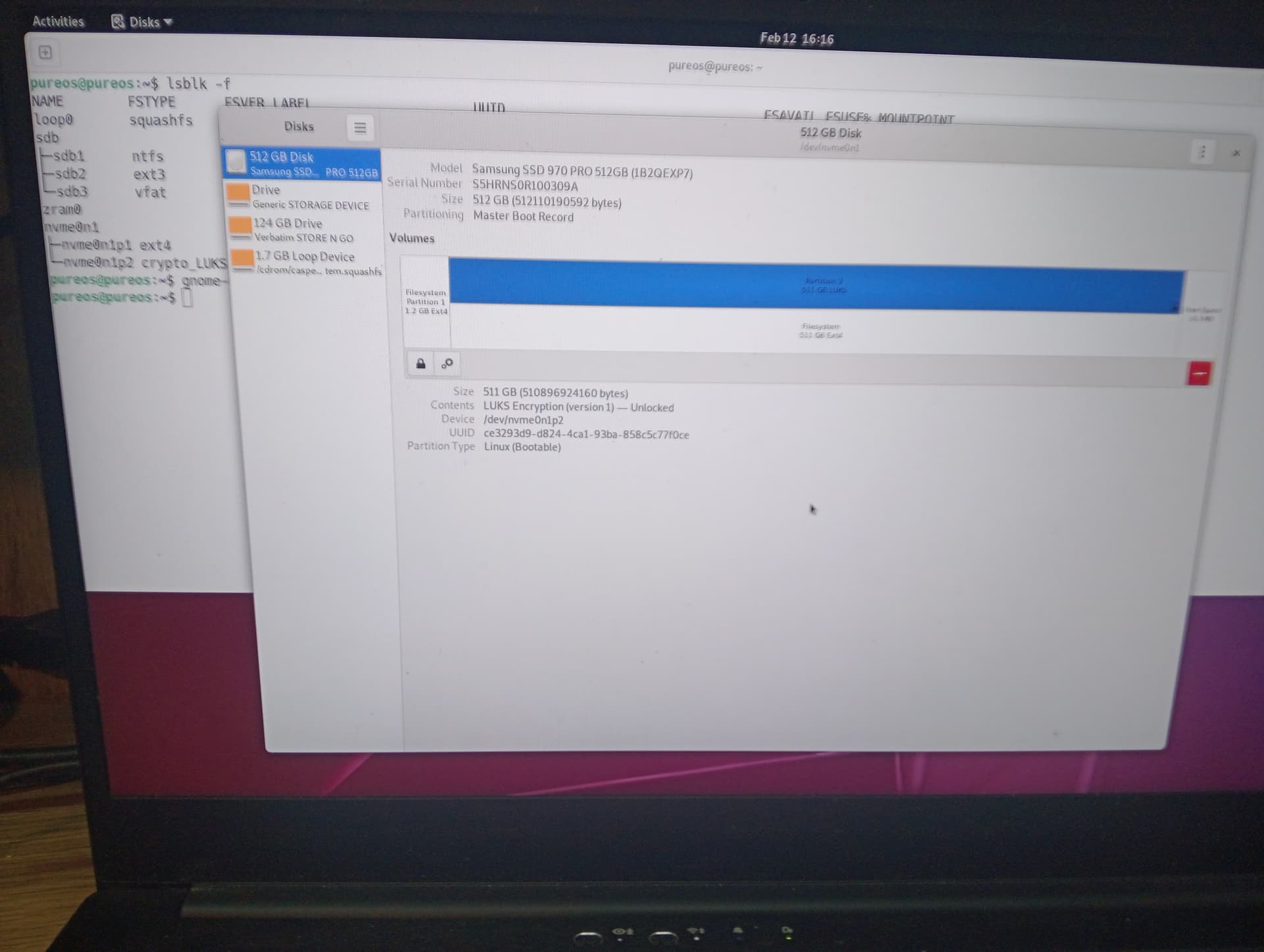
Yes … although there is only a lock/unlock in the screenshot.
Notice that this partition has two parts (a top and bottom). The one highlighted blue is “LUKS”. Select the one below it that says “ext4”. After that you will see a “play” icon instead of a “lock/unlock” icon. When you press the “play” icon, that partition will be mounted somewhere (either under /mnt or /media), but the details of where its mounted will be added to the Disks GUI on the “Contents” line.
At that point you can copy and/or backup the decrypted contents of that drive. [Aside: If you want to back it up using dd … you can see the devices under “lsblk -f” … it will be the 511GB ext4 drive listed under /dev/mapper ].