I’m on a Librem 14. I have updated to PureOS Crimson. The PureOS Store usually doesn’t populate when I click on a category. It also usually doesn’t load updates. Even after rebooting and running sudo apt update it doesn’t populate or load updates.
Does anyone have any suggestions for getting the PureOS Store to work properly?
Sebastian has a workaround to this cache issue.
Thank you. I did run pkill gnome-software. Then reopened PureOS Store. That seems to have helped. However, everything is very slow to load.
I recommend to use apt from the command line. See:
I also use apt. But for people like my 77 year old mother, PureOS Store is a convenient way to get things done. Is this not something Purism can take control of instead of relying on Gnome?
I usually do use apt to update. However, it’s nice to use the PureOS Store to browse and discover apps. Hopefully, it gets better over time.
I think the first thing is that PureOS should catch up with the latest Debian release. This is being worked on and there is a lot of progress. The current GNOME Software in Debian is newer than the version on which PureOS Store is based on in PureOS Byzantium.
You might also try this Bazaar flatpak. I tried it myself on my Fedora laptop and desktop, not on my Librem 5 though.
Financial support to PureOS can be given by totally optional PureOS subscriptions.
Being using an old DEll allinone PC and today when i got the notification to upgrade it failed. computer still working fine. thanks
PackageKit task failed
Traceback (most recent call last):
File “/usr/share/pureos-upgrade/pureos_upgrade/packagekit.py”, line 13, in _task_finished
finished_callback(client.generic_finish(result))
gi.repository.GLib.GError: pk-client-error-quark: W: GPG error: /repositories/home:/strycore/Debian_12 - openSUSE Download ./ InRelease: The following signatures couldn’t be verified because the public key is not available: NO_PUBKEY 51E468E9164740F3
E: The repository ‘ /repositories/home:/strycore/Debian_12 - openSUSE Download ./ InRelease’ is not signed.
W: Updating from such a repository can’t be done securely, and is therefore disabled by default.
W: See apt-secure(8) manpage for repository creation and user configuration details.
E: /repositories/home:/strycore/Debian_12 - openSUSE Download ./ InRelease is not (yet) available (The following signatures couldn’t be verified because the public key is not available: NO_PUBKEY 51E468E9164740F3)
(319)
Looks like you are using some non-standard repositories. Have a look at the non-blank, non-comment lines in /etc/apt/sources.list and re-evaluate whether any non-standard repositories should still be there.
If not, you can just comment them out and confirm that sudo apt update now completes without error.
If you still need those things then you would need to investigate the signing more closely. I think you can in principle override that error but that isn’t a good long-term option.
thanks for te reply I will do search on how to do that, thanks
Just sudo vi /etc/apt/sources.list
to comment out any repo on opensuse.org
I assume that you put them/it in there in the first place.
thanks for trying to help but i have no idea how to do that,
Then I would wonder how it got in there in the first place‽
Maybe you were in some other forum and you asked about something and someone gave you a command to execute. Maybe something to do with music videos?
Thanks for the response, I tried using the web to find a solution but I end up downloading the new OS to a flash drive, after two failed installs I was able to do a clean install in the same PC but now, a few of the apps I was using with the other OS wont install on the new one. Remote Utility opens the store and installs from file and I can see the Icon but it wont open, thanks
If it were I experiencing that scenario then I would
- locate the
.desktopfile that corresponds to that application - examine the command that the
.desktopfile says it will execute - manually execute that command from the shell prompt
- see what error (if any) is given
- troubleshoot the error (if any)
Bear in mind that you appear to be installing some unknown package from an unknown location. At some point, you may have to ask the author of that software what its pre-requisites and environmental assumptions are.
At the absolute minimum, you could post the icon here.
Pasting sudo vi /etc/apt/sources.list into the terminal and hitting the Enter key would do the following:
sudo= Require the user to enter the “admin” password, and raise user’s privileges to “admin” level in order to make changes to the system.vi= Use the “vim” text-editing application to read and optionally make changes to the file./etc/apt/sources.list- Open the “sources.list” file, which is located in directory “/etc”, subdirectory “/apt” in the file system.
“Comment out” refers to placing the symbol # at the beginning of any line (or block of text that is really one wrapped, continuous line), which will cause that line to be ignored/not read by the system, but not removed unless you delete it.
To “uncomment” a line means to remove the # so the line will then be read by the file system.
And, of course, editing system files can have unpleasant consequences if you’re not careful.
With the proviso that in that case one would have to know how to use vi - and nano might be considered a more user-friendly text editor.
I
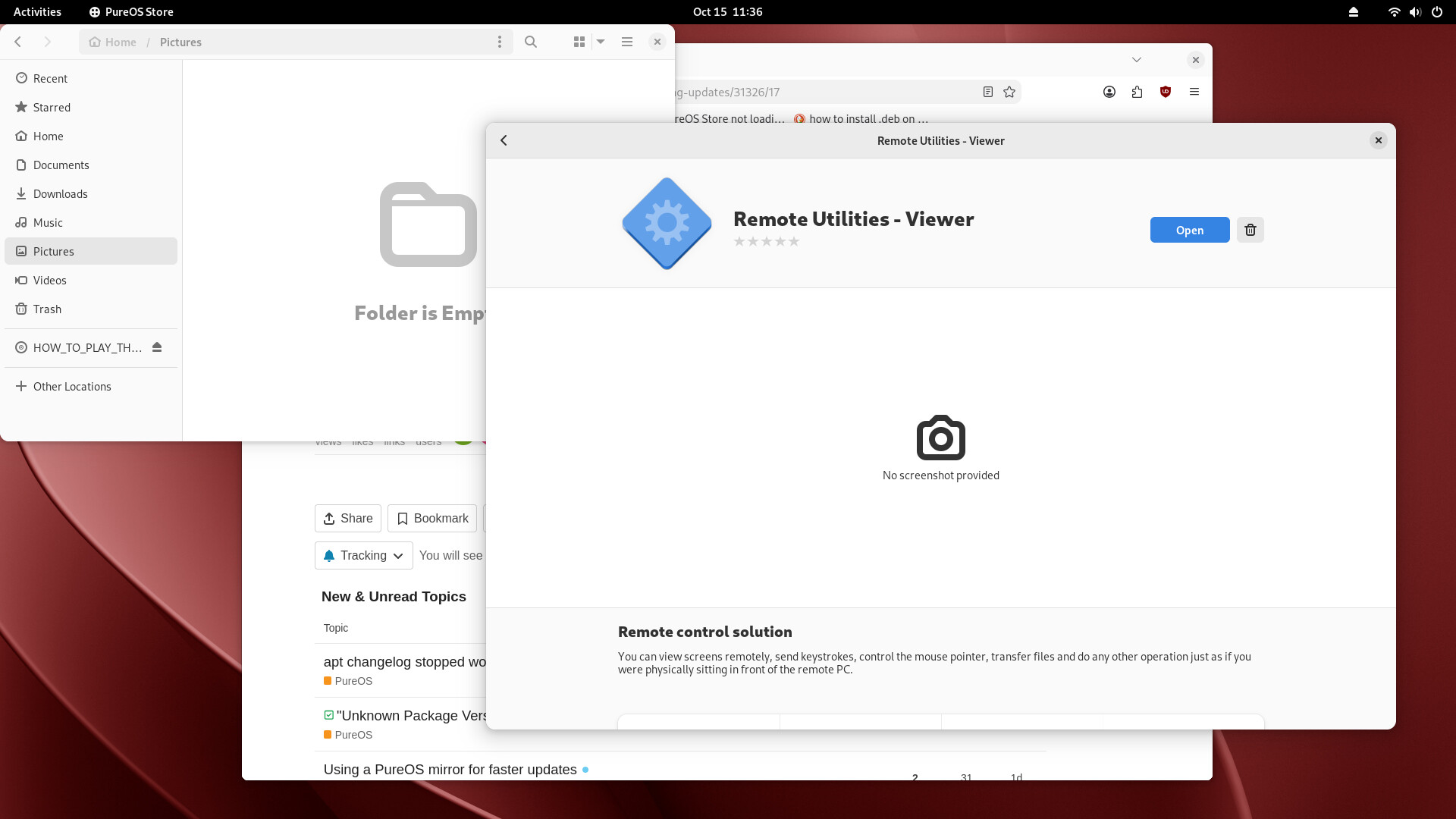
i try to get the icon in the dash but for some reason the screenshot wont take the pic of the dash. I was able to use the terminal to install the .deb file that i downloaded from https://www.remoteutilities.com/download/ and was able to intall with no errors still wont run.
Then I would recommend following the troubleshooting procedure above, starting with the .desktop file.
Looks like the .desktop file is r-viewer.desktop and looks like the command to run is/usr/bin/r-viewer
However at the end of the day, it’s not great to download and install random software, either from the perspective of security or from the perspective of whether it even works.
You should be asking the supplier what the System Requirements are. That I could find, the information available for Linux is totally lame i.e.
- Ubuntu, Debian, Mint (.deb)
- RedHat, CentOS, Fedora (.rpm)
- Other distributions (.tar.gz package)
with absolutely no information about required operating system version (whereas all other “supported” platforms do at least give the bare minimum information) or required dependencies (and their versions).
Edit: PS The following should be the icon (which I extracted from the .deb file).

Perhaps you would confirm that.
thanks for all the help, I used the terminal to remove and then I noticed there was a update pending so I updated it the PC, then reinstalled the software using rightclick install software and now it seems to be working fine, not sure what fixed it.